How to find roles that actually fit your level
Set your level once, watch the companies you'd really join, and let the Jobs agent check every role before you spend an evening on it.
When I went back to the job market in September, the hardest part wasn't writing applications. It was finding roles worth writing them for. Half of what I saw was too junior, too senior, closed weeks ago, or posted somewhere that wasn't the company at all.
The Jobs agent in Istos is built around that problem. It doesn't try to show you every job on the internet. It reads the roles at companies you choose, checks each one against the company's own site, and tells you plainly how good your odds are. This guide walks through setting it up so what lands on your Jobs page is worth your time.
Start with your level, not your keywords
Most job searches start with a keyword. That's how you end up with a "Product Designer" search that returns interns and design directors on the same page.
In Istos you set the shape of the search once, under Settings, then Job filters:
- Where you can work. Your locations, and whether you only want roles that say remote or anywhere.
- Visa and relocation. The countries where you'd need a work visa, and whether you'd move. Sponsorship is read from the posting and from official sponsor lists for the UK, the US, Canada and Ireland.
- I need a job soon. This one is worth understanding. Turned on, it recommends more roles, low odds included, and keeps titles one level above or below yours. It never changes your odds. It only widens what you see.
Find jobs drops roles that miss these rules before any model reads them. That matters for two reasons: it's fast, and you're not paying for a model to read a role you'd never take.
Watch companies you'd actually join
The Jobs page has a Watchlist. Each company on it is a job board Istos reads on every run: Greenhouse (opens in a new tab), Lever (opens in a new tab) or Ashby (opens in a new tab) boards, plus the company's own careers pages. If you're not sure where to start, Suggest companies adds some from your brief and checks which have a job board it can read. Remove any you wouldn't join.
Istos also searches official government job banks with the titles you set, only in countries you can work in or would move to. Sweden's and Norway's are live today.
If you've found a role somewhere else, use Add a job or post and paste the link. Istos reads links on company sites and official boards, never LinkedIn, and the role goes through the same checks as everything else.
Run Find jobs and read the badges
When you press Find jobs, a small team of agents takes turns. Scouts read your watched boards and the job banks. A filter applies your rules. A vetter checks each role. A scorer rates what's left out of ten against your brief, with a line on why. A writer drafts applications for the best few, three by default. You can watch each step as it happens.
Every role then carries a row of badges under its title. Words first, colour second:
- Verified on the company's domain, when the role is still listed on the company's own board, careers page or a government job bank.
- Posted N days ago. It turns amber once a role is older than 14 days.
- Sponsors visas, with where that came from: "on the UK register" or "says so in the posting". Or No sponsorship, when the posting says so.
- Flagged, with the reasons listed in the Flagged view.
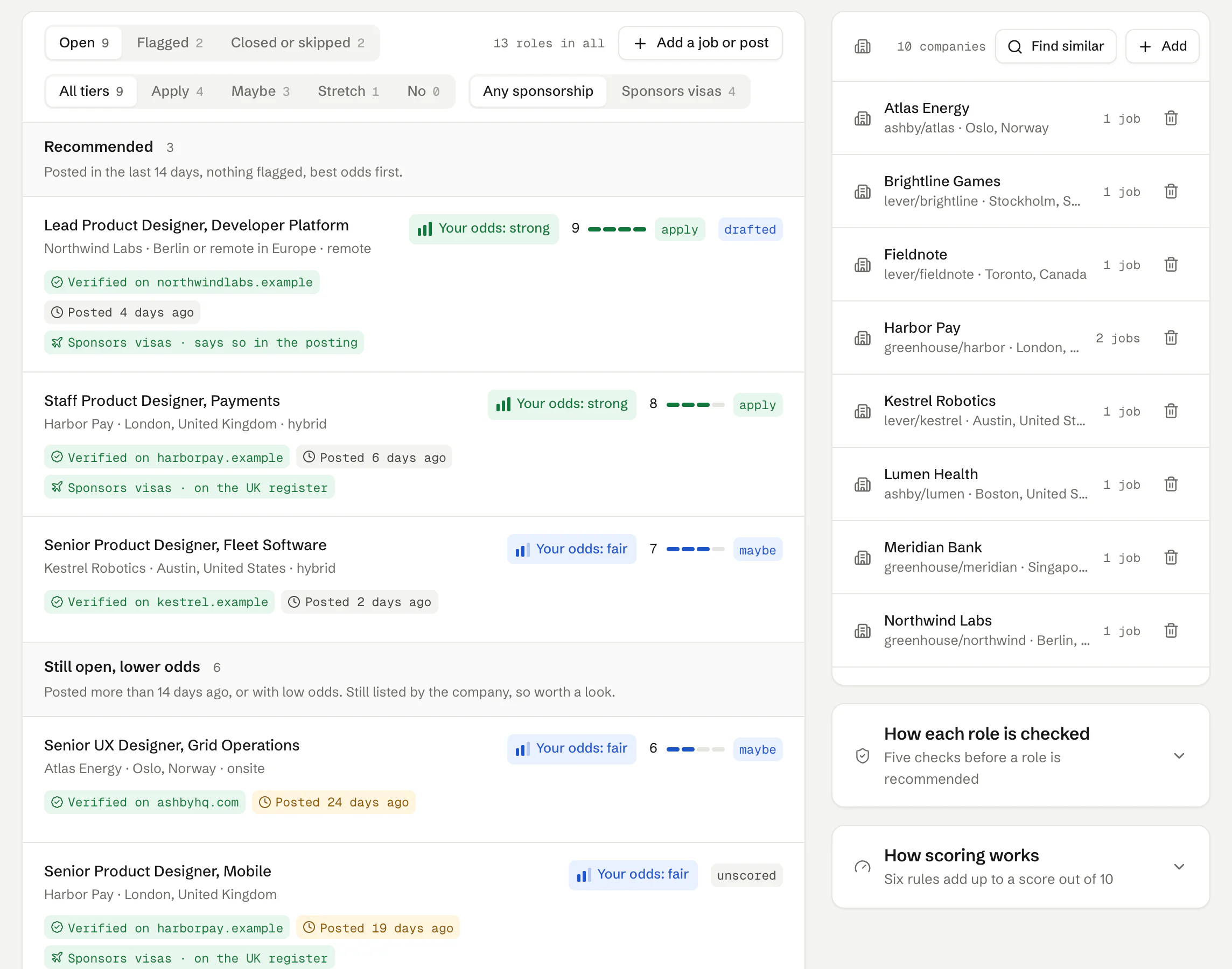
The Jobs page on demo data: Recommended roles first, each with its odds, score and checks.
A role gets flagged when it looks like a fake or a data grab. The apply link goes somewhere that isn't the company's domain or a board it uses. It asks you to write to a free mailbox, or to move the chat to a messaging app. It wants money, bank details or ID before an interview. The pay is far above the norm for the title. The company's domain was registered in the last 90 days. Or no official source lists the role at all. Each flag comes with the plain reason, and a flagged role is never scored, drafted or sent.
Read your odds, then the score
The score tells you how well a role matches your brief. Your odds tell you how likely it is to go anywhere. They're different questions.
Next to each role there's a key that reads Your odds: strong, fair or low. Open it and you'll see the reasons, each marked as a plus, a minus or a note. They come from four things: how fresh the role is, whether you can work where it is (remote limits, visa needs, relocation), whether the level matches yours, and whether your skills line up. You'll never see a percentage, because a percentage would claim a precision nobody has.
That's also why the open list has two parts. Recommended holds roles posted in the last 14 days with nothing flagged, best odds first. Still open, lower odds holds older roles that are still listed. They're not hidden, because sometimes an older role is exactly right. They're just not where your evening should start.
Use the warm path before you apply
Open a role and you'll find the warm path: four short sections in the order that usually works.
People you know
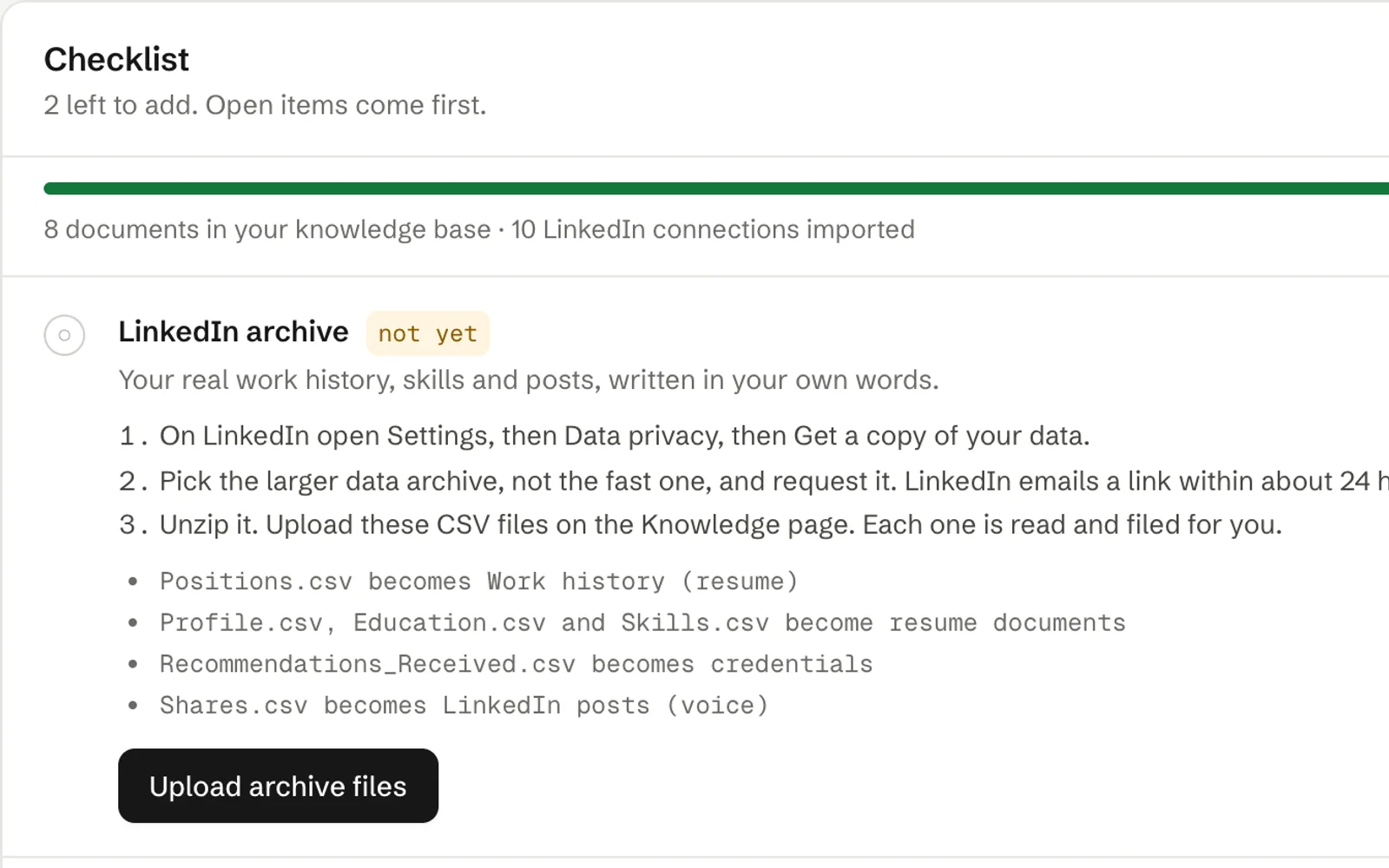
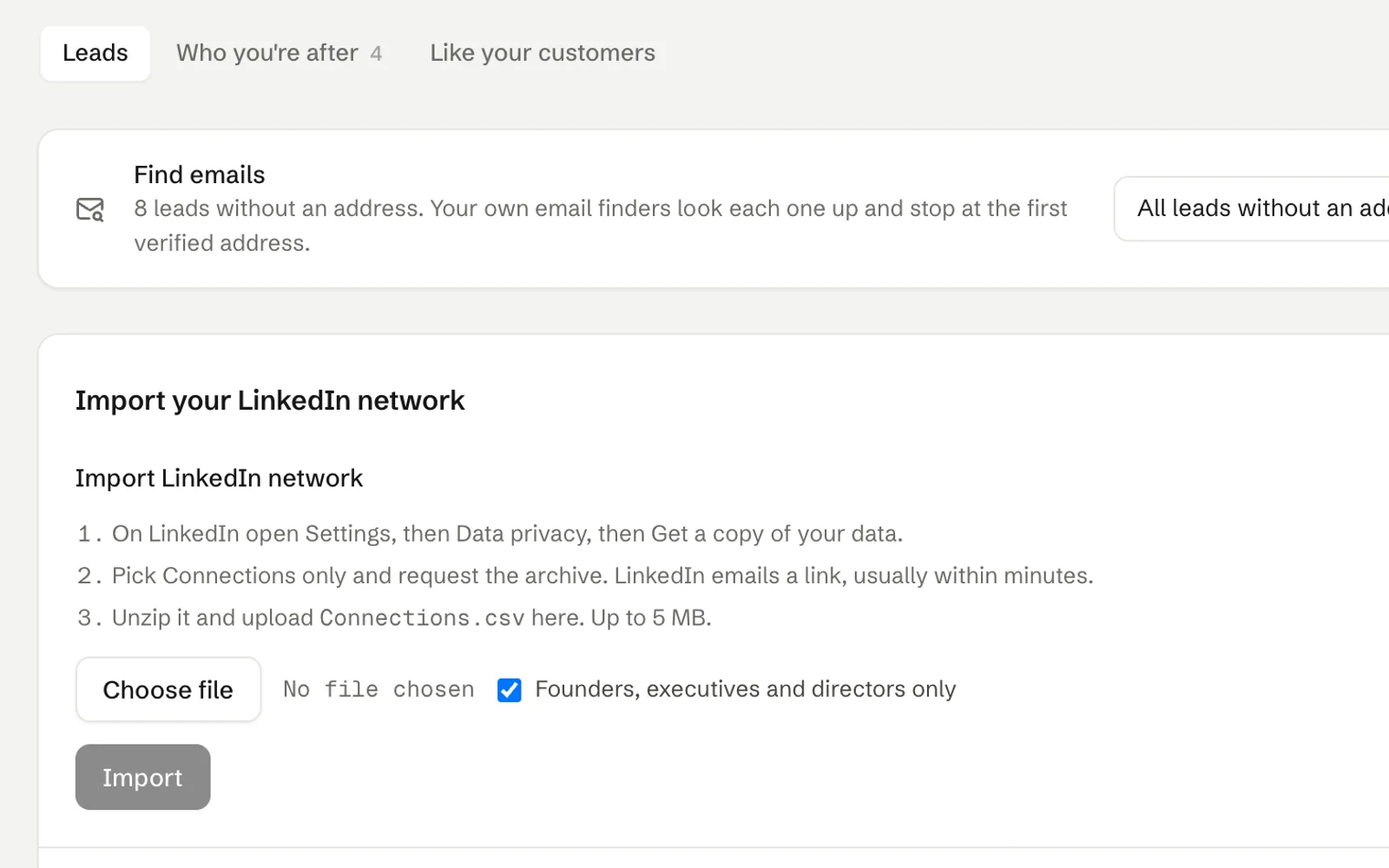
If you've imported your LinkedIn connections (on Pro), Istos lists the ones who work there, best first. On Starter you'll see how many there are.
The hiring side
Who the role reports to, read from the posting, and people from the company's own team pages. Searches you run yourself open in a new tab.
Something worth saying
Openers and a short map of why you fit, built from your resume and the posting, so a note to the team says something real.
Timing and follow-up
Referral asks and notes to the hiring manager land in your queue as drafts. Approving one sets a follow-up reminder for five working days later.
Anything meant for LinkedIn or X is a copy-and-send draft. Istos never posts or sends on those networks for you. You copy the message, send it yourself, then mark it as sent.
Approve, send and follow up
Applications are drafted from your resume and your notes, and they wait in the queue like every other draft. Read it, change any word, then approve. Approved email goes out from your own address, so replies come straight back to you.
If a role gets flagged after its draft was written, the email won't send, even if you approved it. You'll see why on the Jobs page.
A routine that works
Here's what I do with my own search:
- Run Find jobs in the morning.
- Read Recommended only. Skip anything with low odds unless I know someone there.
- For the two or three roles I'd be excited about, open the warm path first and send one note to a person.
- Approve the application last, after the note.
It's slower than firing off fifty applications. It's also a pace I can keep up for months, and the notes I send are ones I'd be happy for the person to read twice.
If you want to see how it reads a resume before you join, the free preview on the home page does a small version of this: it reads your resume in memory, finds live roles at your level and drafts a cover note to the person hiring for each.
Let the agents do the searching
Istos is in private beta. Join early access, or try the free preview on your resume, your website or your raise first. Nothing sends until you approve it.