How to request and download your LinkedIn archive
Where LinkedIn keeps the download, which files to ask for, how long each takes and what arrives by email. The first step to giving Istos your network and your own words.
Your LinkedIn account already holds two things Istos is much better with: the people you know, and the way you write when nobody is editing you. LinkedIn lets you download both. It takes a few clicks and, depending on what you ask for, somewhere between ten minutes and two days.
This guide covers the LinkedIn side only. The next one, How to upload your LinkedIn archive to Istos, covers what to do with the files once you have them.
One thing up front, because people ask: Istos never logs in to LinkedIn, never asks for your LinkedIn password and never automates anything on LinkedIn. You download the files yourself, from LinkedIn's own settings, and you choose which ones to give Istos.
Which files Istos uses
LinkedIn's archive has dozens of files. Istos reads seven of them and ignores the rest:
| File | What's in it | Where it goes in Istos |
|---|---|---|
Connections.csv | Your first-degree connections: name, profile link, company, position, the date you connected, and an email when they allow it | Leads, and the warm path on each job (Pro) |
Positions.csv | Your work history from your profile | Knowledge, as your resume |
Profile.csv, Education.csv, Skills.csv | Your headline, summary, schooling and skills | Knowledge, as your resume |
Recommendations_Received.csv | Recommendations people wrote about you | Knowledge, as credentials |
Shares.csv | Your own posts | Knowledge, as your voice |
You don't need all of them. If you only want the warm path, Connections.csv is enough. If you want drafts that sound like you, Shares.csv is the one that matters most.
Request the download
These steps follow LinkedIn's help page, Download your data (opens in a new tab), as it read on 5 October 2026.
Open Settings & Privacy
On a computer, click the Me icon at the top of your LinkedIn homepage, then choose Settings & Privacy from the dropdown.
Go to Data privacy
Click Data Privacy in the left rail. Under How LinkedIn uses your data, click Download your data. Some of LinkedIn's older pages call this link Get a copy of your data. It's the same place.
Choose what to download
You get two choices. The larger download includes everything, connections and posts among it. Or you pick specific files. For Istos, tick Connections, Positions, Profile, Education, Skills, Recommendations Received and Shares, or just the ones you want from the table above.
Request the archive
Click Request archive. That's it on LinkedIn's side. Now you wait for an email.
- MeThe icon at the top of your homepage
- Settings & PrivacyFrom the dropdown
- Data PrivacyIn the left rail
- Download your dataUnder How LinkedIn uses your data
- Request archiveLarger download or specific files
How long it takes
LinkedIn's page says that if you select a specific type of data, it emails you within minutes, and if you select the larger download, you'll get an email within 24 hours.
The same page lists each kind of file with when to expect it. Profile, Positions, Education, Skills and Recommendations Received are in the group available within 10 minutes. Connections and Shares are in the group LinkedIn says can take up to 48 hours. So if you only asked for your connections and nothing has arrived after an hour, that's normal. Give it a day or two before you request again.
Download it before the link expires
The email goes to the primary address on your LinkedIn account, with a link to your files. Follow it, sign in to LinkedIn if asked, and download the archive. It arrives as a single .zip file.
Don't leave it in your inbox for later. LinkedIn says the data is available for download for 72 hours. After that you'll need to request it again, and wait again.
Then unzip it. On a Mac, double-click the file. On Windows, right-click it and choose Extract All. You'll see a folder of .csv files, one per kind of data, named as in the table above.
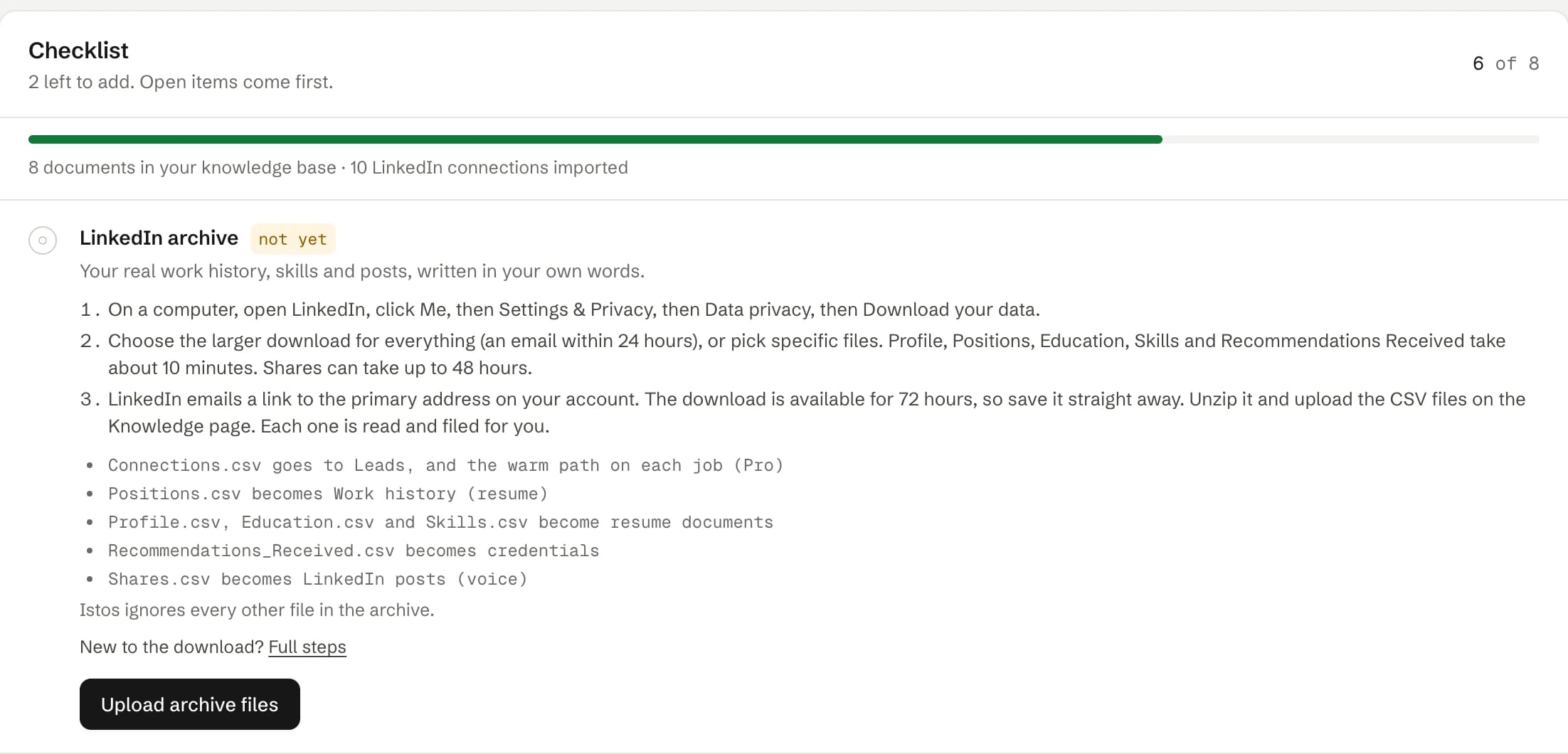
Istos keeps the same list in the app: Knowledge, then Make Istos sound like you. On demo data.
Keep it somewhere private
The archive is your data, and it includes other people's details too: names, companies and, for some connections, their email addresses. LinkedIn advises downloading it on a personal computer, not a public one. Keep the folder somewhere private and delete the files you don't need once you've uploaded the ones you do.
Istos only receives the individual files you choose to upload. It never sees the rest of the archive.
If something goes wrong
- No email yet. Check spam and any folder your mail app sorts automatically. Then check which address is primary on your LinkedIn account, since that's where the email goes. Connections and Shares can take up to 48 hours.
- The link has expired. The download stays available for 72 hours. Request the archive again from the same page.
- A file is missing. LinkedIn only sends the kinds of data that apply to your account. If you've never posted, there's no
Shares.csv. If you have no recommendations, there's noRecommendations_Received.csv. - Emails are missing from Connections.csv. That's expected. LinkedIn's page explains that each member chooses whether connections can download their email address. Istos still matches those people to companies on the warm path; messages to them become copy-and-send drafts instead of email.
- You're on your phone. LinkedIn says the download isn't available on mobile. Use a computer.
Once you have the files, the next step takes about two minutes.
Let the agents do the searching
Istos is in private beta. Join early access, or try the free preview on your resume, your website or your raise first. Nothing sends until you approve it.