How to upload your LinkedIn archive to Istos
Your connections go to Leads and the warm path, your posts and work history go to Knowledge. What Istos reads from each file, what it leaves alone, and where it shows up.
You've downloaded your LinkedIn archive and unzipped it into a folder of .csv files. (If you haven't yet, start with part one.) Now you give Istos the few files it uses.
They go to two different places, because they do two different jobs. Your connections are people, so they go to Leads. Your posts and work history are your own words, so they go to Knowledge.
Import your connections on Leads
Open Leads and press Add leads
In Istos, open Leads and press Add leads at the top right. Choose Import LinkedIn network from the menu. On Starter you'll see it with a lock, and a note that it needs Pro.
Choose Connections.csv
Press Choose file and pick
Connections.csvfrom the archive folder. The file can be up to 5 MB, which is far more than most networks need.Pick who to keep
Founders, executives and directors only is ticked by default. It keeps people whose position reads like someone who can buy or introduce: founder, chief, head of, director, VP, partner and the like. Untick it to import everyone.
Import
Press Import. Istos tells you what happened in one line, for example "Added 212 of 1480, 3 already here, 1265 skipped as not decision makers." Importing the same file again later only adds people who are new.
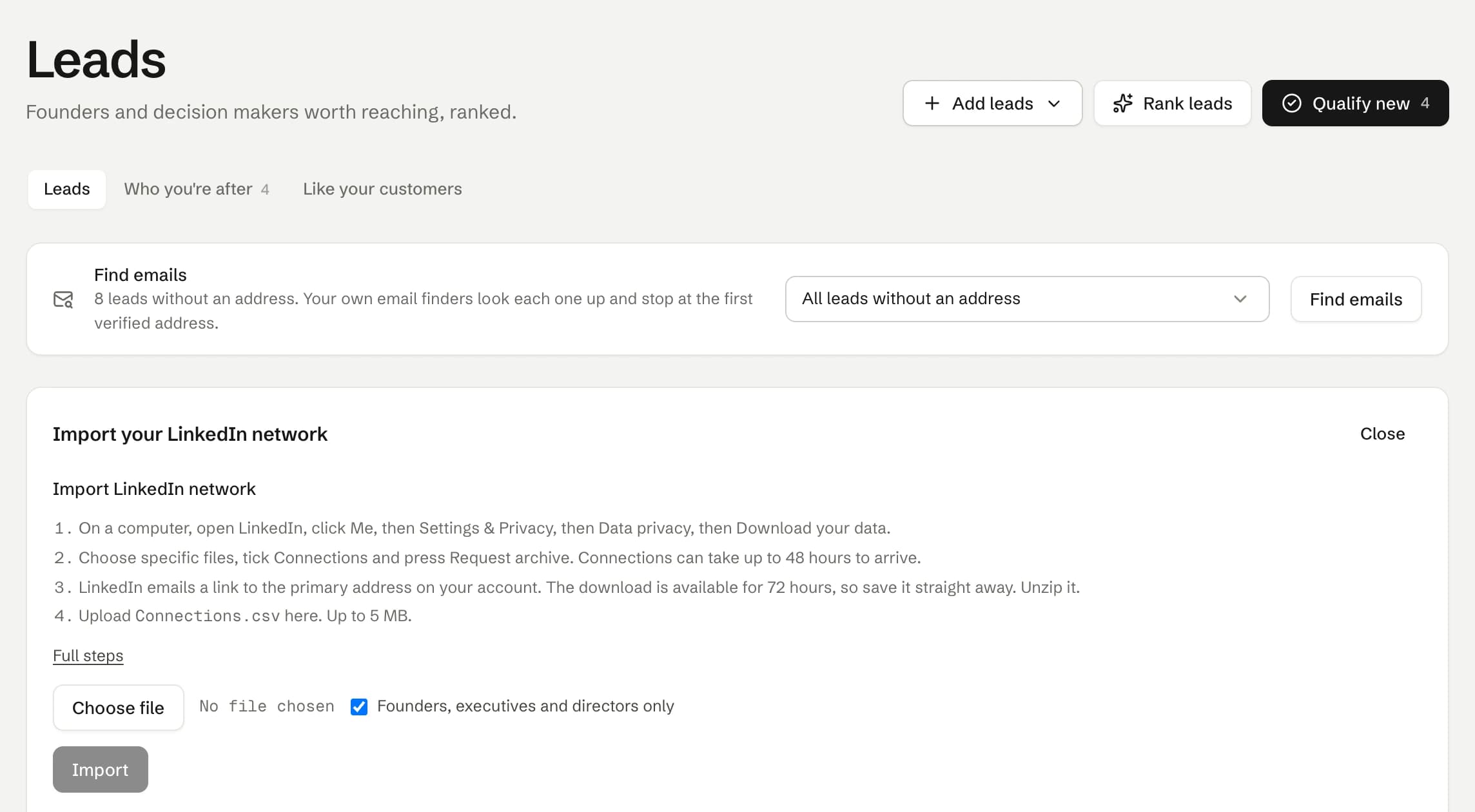
Leads, then Add leads, then Import LinkedIn network. On demo data.
What Istos reads from Connections.csv
For each row: first and last name, the profile link, the email address when that person allows connections to download it, company, position and the date you connected. That's all the file holds, and that's all Istos keeps. Each person becomes a lead with the note "Connected on LinkedIn" and the date.
Rows without a profile link are skipped, and people already in your leads are matched by their profile link, so nobody is added twice.
Upload your own words on Knowledge
The other six files describe you, so they belong in your knowledge base, which every agent reads before it writes.
Open Knowledge and press Upload
Open Knowledge and press Upload at the top right. A small form opens under All documents.
Choose one file
Pick one of
Shares.csv,Positions.csv,Profile.csv,Education.csv,Skills.csvorRecommendations_Received.csv. Files can be up to 25 MB. Upload them one at a time.Leave the kind to Istos
For these six files you don't need to set Kind. Istos recognises each one by its name, turns it into a readable document and files it for you.
Keep it pinned and upload
Pin it so it goes into every prompt is ticked by default. Keep it ticked for
Shares.csvandPositions.csv. Then press Upload. Istos confirms the document's title and how many words it read.
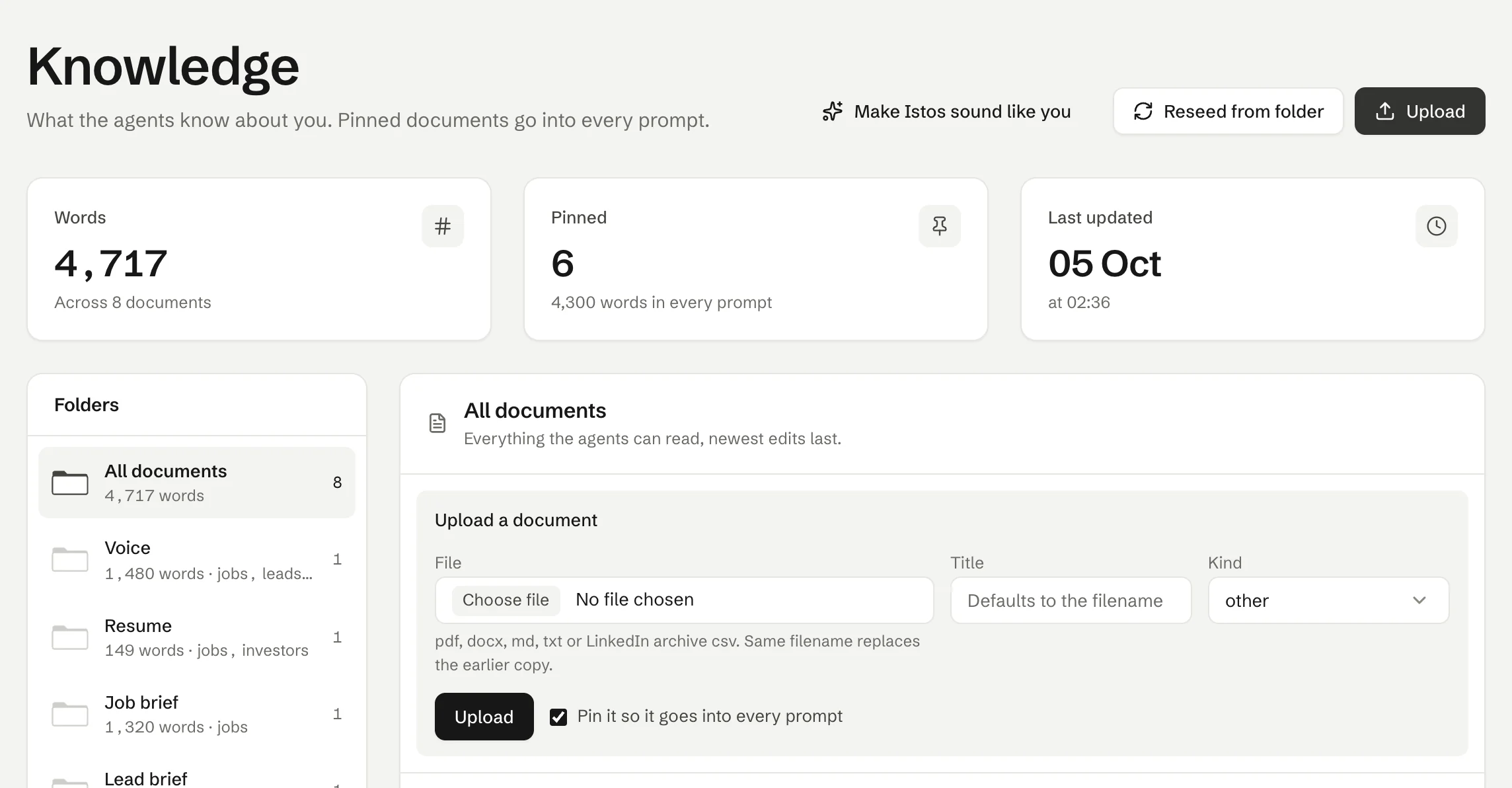
Knowledge, then Upload. The hint under the file field lists what it accepts. On demo data.
Here's what each file becomes:
Shares.csvbecomes LinkedIn posts, a voice document: your posts, each with its date. This is the one that teaches Istos how you sound.Positions.csvbecomes Work history from LinkedIn: each role with its company, dates, location and description.Profile.csv,Education.csvandSkills.csvbecome resume documents: your headline and summary, your schooling, and your skills as a list.Recommendations_Received.csvbecomes Recommendations from LinkedIn, a credentials document, so a draft can mention what someone said about you, with care.
Uploading a file with the same name again replaces the earlier copy, so you can refresh it next year without making duplicates. A very long file is clipped at 120,000 characters, with a note saying so.
What Istos doesn't read
Only the files you upload. Istos never sees the rest of the archive: not your messages, invitations, searches, ad data or anything else LinkedIn sends. It never logs in to LinkedIn, never reads LinkedIn pages and never sends anything on LinkedIn. Messages meant for LinkedIn are copy-and-send drafts that you paste and send yourself.
Where you'll see it
- The warm path on every job. Istos matches your connections to each role's company, so "People you know there" lists who works there, with what you have in common. On Pro you see their names and can draft a referral ask. On Starter you see how many people you know there. How to use the warm path on a job covers this.
- Leads. Your connections are leads like any other: scored, qualified and written to in your voice, but only when you choose.
- Every draft. Your posts and work history are read before Istos writes a job application, a first email or an investor intro. Pinned documents go into every one.
- Interview prep. Answers draw on your work history and recommendations, never on things you didn't write down.
If something goes wrong
- "This does not look like Connections.csv." Istos looks for LinkedIn's header row, the one that starts with First Name. Use the file straight from the archive. If you opened it in a spreadsheet and saved it again, the header may have changed.
- "That file is over 5 MB." Connections.csv is normally much smaller. Check you picked the right file.
- "Connections.csv is your network." You tried to upload it on Knowledge. Import it on Leads instead.
- "Has no rows we can read." The file is empty, or it isn't the one from the archive. Download the archive again if you need to.
- Import LinkedIn network has a lock. It's part of Pro. You can upgrade on Billing, or keep using the Knowledge upload, which works on every plan.
Next, the file employers actually open: your resume.
Let the agents do the searching
Istos is in private beta. Join early access, or try the free preview on your resume, your website or your raise first. Nothing sends until you approve it.