How to use Mission control
Watch the agents work in real time, on a globe or in a small office where each kind of agent has its own colour and room. What every pane shows, the keys that move you around, and how to pause it all.
Most of the time you don't need to watch the agents. They run, they write, the drafts land in your queue. But when you want to see what's happening right now, which agent is on which task, where in the world it's looking and what it just found, that's Mission control.
Open it with Mission in the top bar. It's the one dark room in Istos, laid out like a control room: who's working on the left, the stage in the middle, what they're saying on the right, and a timeline along the bottom.
The four panes
Squad, on the left
Every run, grouped by pipeline, newest first. Sub-agents sit indented under the run that started them. The square before each one is its status: orange while it's running, green when it's done, red if it failed. Under the list, the counts of runs done and failed and events logged.
The stage, in the middle
Switch between Globe and Office at the top right. Istos remembers your choice in this browser.
Activity stream and Diagnostics, on the right
The stream is every step the agents log, newest first, in plain words: "Ranking 16 leads", "Reading the posting and the resume". Pick a run in Squad and Diagnostics shows its details: kind, status, when it started, how long it's taken, its sub-agents, its events and the last place it looked. Instructions opens the house rules every agent follows, which you can edit and reset. The model and effort for each kind of run are picked by Istos, and the Diagnostics line says so; only the owner of an install can change them.
Timeline, along the bottom
The last 60 minutes: one lane per run and the events per minute. Focus it and the arrow keys move a cursor through time. Last event says how long ago anything happened.
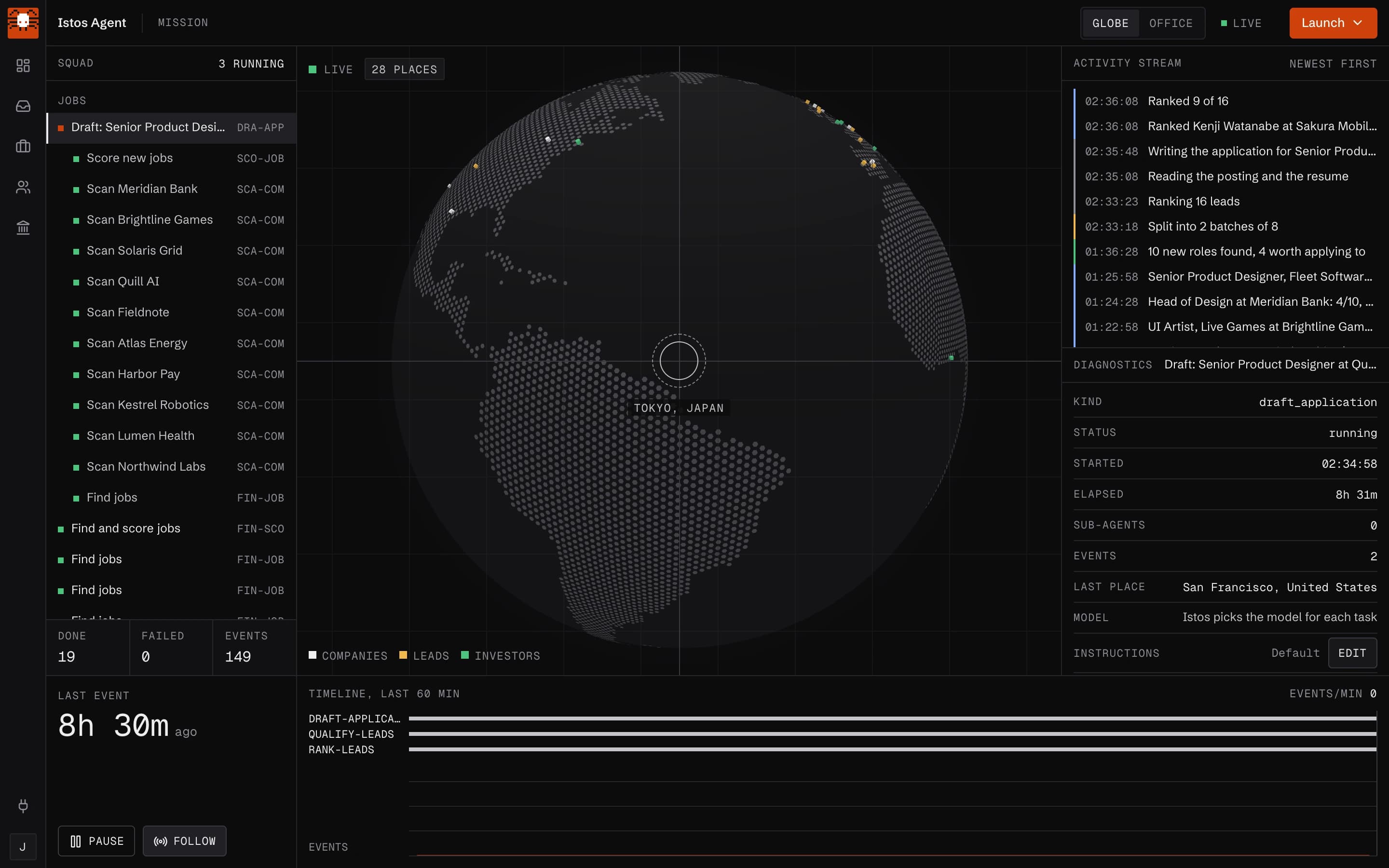
Mission control, globe view. On demo data.
The globe
The globe shows where the agents are looking: a marker for each place an event came from, white for companies, amber for leads and green for investors. The readout in the corner counts the places, and the name under the crosshair is where the latest event came from. When nothing is running it says All quiet, no agents running.
The office
Office turns the stage into a small office floor seen from above, with nine rooms: the Jobs desk, the Leads floor, the Investors suite, the News room, the Atrium, the Writers' room, Reception, the Queue room and the Meeting room. Each running agent is a little figure that walks to the room for its job and sits down to work. When a writer finishes a draft, a sheet of paper flies to the inbox tray in the Queue room, which is your queue filling up.
Each kind of agent has its own colour, shown in the legend at the bottom left:
- Scout, green: finds jobs, companies and investors.
- Scorer, blue: scores and ranks.
- Qualifier, white: qualifies leads and filters jobs.
- Writer, amber: drafts emails and applications.
- Closer, grey: sends and follows up.
- Reporter, orange: reads the news and sums up runs.
Hover a figure to see which run it is, and click it to open that run in Diagnostics. When rooms fill up, the building grows extra floors, and number keys appear in the camera bar to move between them.
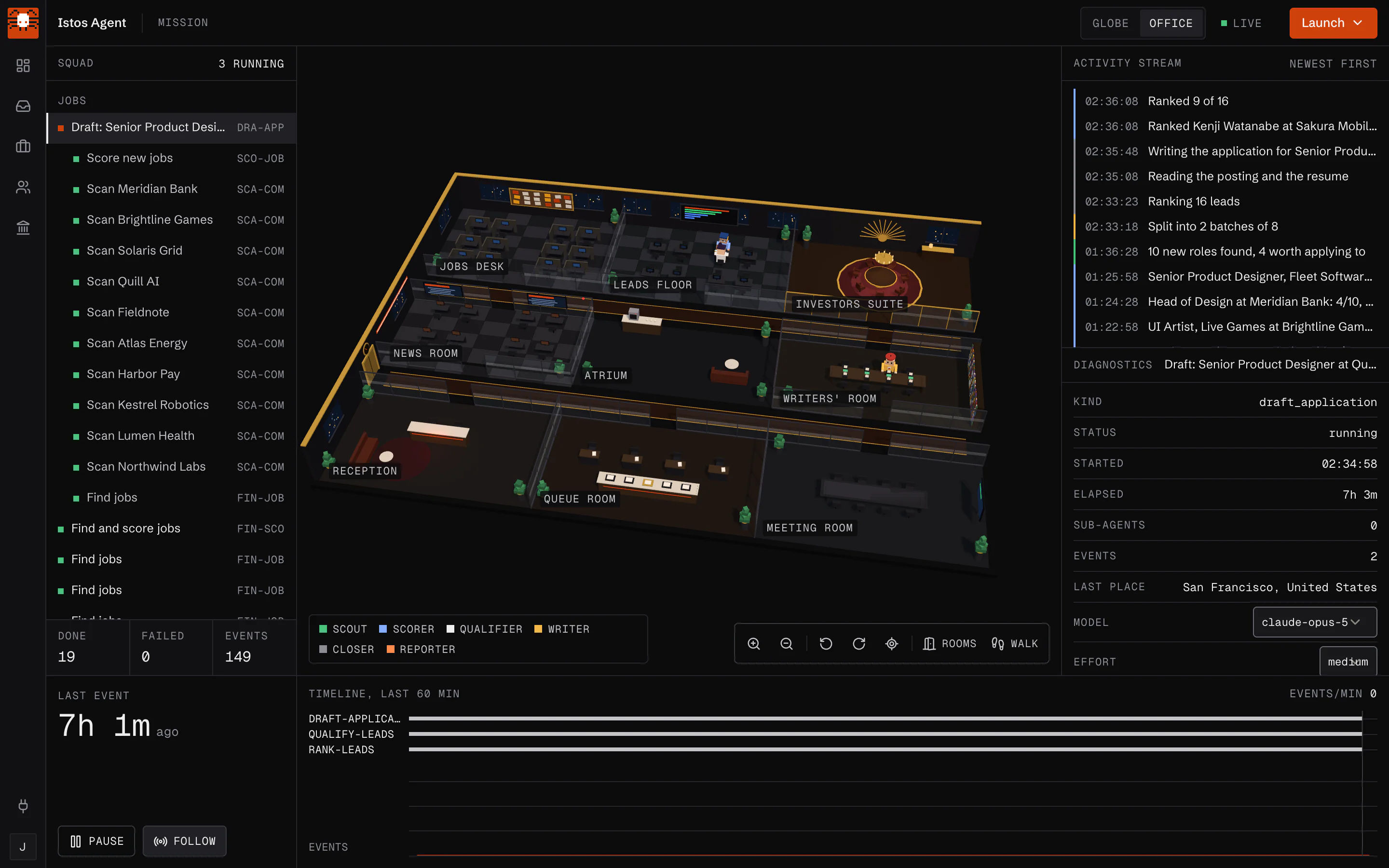
Mission control, office view. On demo data.
Moving around the office
With a mouse, drag to rotate, scroll to zoom, and double-click a room to go in. Back to floor at the top left takes you out again. On a touch screen, drag to rotate and pinch to zoom.
The keyboard does everything too, once the office has focus:
| Key | What it does |
|---|---|
| ← → ↑ ↓ | Pan across the floor |
| Q E | Turn left or right |
| + - | Zoom in or out |
| R | Reset the view |
| 1 to 9 | Go into a room, in the order of the Rooms menu |
| Esc | Back to the floor |
Rooms in the camera bar lists all nine with how many agents are in each right now.
Walk mode
Walk puts you on the floor in first person. W A S D or the arrow keys move you, dragging looks around, Shift walks faster and Esc leaves. Lock mouse lets you look around without holding the button; Esc releases it. A small map in the corner shows where you are. Walk mode needs a keyboard, so it isn't offered on touch screens.
Launch, pause and follow
Launch at the top right starts a run from here: Find jobs, Rank leads or Suggest investors. A pipeline that isn't on your plan shows a lock and a link to upgrade. On Starter, the first pipeline you launch becomes your one pipeline. Once a run starts, Watch it run opens its live steps.
Pause at the bottom left freezes everything exactly as it is and closes the live feed; Resume opens it again. Follow keeps Diagnostics on the newest run as runs start; turn it off to stay on the one you picked. The status at the top says Live, Paused or Offline.
If your system is set to reduce motion, the camera jumps instead of gliding and finished drafts go straight onto the tray instead of flying there.
If something goes wrong
- It says Offline. The live feed dropped, often after a laptop sleeps. It reconnects on its own; reloading the page also works.
- The office stays on Opening the office, or stays blank. The 3D view needs WebGL, which some older browsers and locked-down computers turn off. Try another browser, or use the globe, which shows the same runs.
- All quiet, no agents running. Nothing is running right now. Launch a run, or come back while one of your scheduled runs is working.
- Keys don't move the camera. Click once on the office so it has focus. Keys typed into a field or a menu are left alone.
That's the whole series. Everything else in Istos builds on these ten steps.
Let the agents do the searching
Istos is in private beta. Join early access, or try the free preview on your resume, your website or your raise first. Nothing sends until you approve it.