How to approve, edit and send drafts in the queue
Every message an agent writes waits in the queue. How to read a draft and its checks, change any word, approve it, send it, and handle the ones you send yourself.
The queue is the one place where anything leaves Istos. Job applications, first emails to leads, investor intros, referral asks, posts for X: every agent puts its drafts here, and every draft waits for you. Nothing sends on its own, on any plan. (If you want the reasons, I wrote them down in Why nothing sends without your approval.)
This guide is the practical side: how to get through the queue quickly without missing anything.
How the queue is laid out
Four tabs across the top, each with its count: Draft (waiting for you), Approved (ready to send), Sent and Rejected. The list on the left holds the drafts in that tab, newest first. The draft you pick opens on the right. On a phone the list comes first, and Back to list returns you to it.
Each row in the list tells you three things before you open it: what it is (job email, lead email, referral ask and so on), who it's to, and the check on their address.
Read, edit, approve
Open a draft
Pick one in Draft. The top of the draft says what kind it is, its status, and what it's about, such as the company and role.
Check who it's going to
To name and To email are filled in. Under the address, the badge says what your email finders found: Verified, Catch-all, check it, Not found or Not checked. Check address asks your own verifier again.
Edit the words
Subject and Body are plain fields. Change anything. When you've edited, press Save changes before you approve, so what you approve is what you read.
Look at attachments and notes
A job email carries your resume automatically, tagged resume, automatic. Add file attaches more to this one draft. Agent notes says why the agent wrote it the way it did, and anything it wasn't sure about.
Approve, or reject
Press Approve if you'd sign it. Reject keeps the draft for reference in the Rejected tab, where you can restore or delete it. Reading, editing and approving never count as agent runs.
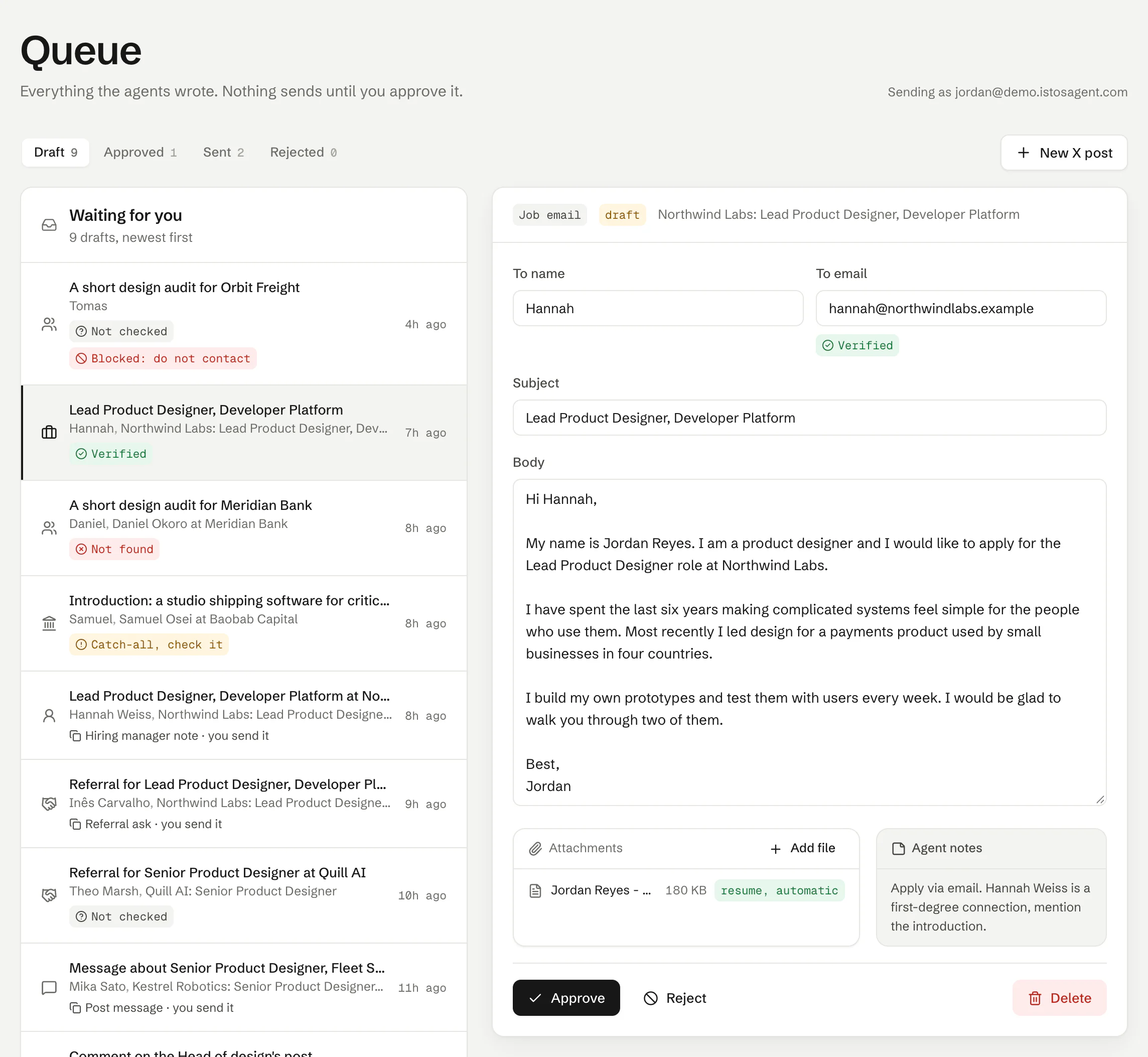
The queue with a job email open. On demo data.
Send
Approved drafts move to the Approved tab. Open one and press Send. Istos asks you once more, "Send" with the subject and the address, and then sends it from your own Gmail or mailbox. It moves to Sent with the time it went.
Two steps on purpose: approving is a decision about the words, sending is a decision about the moment. If you approve in the evening and want it to land in the morning, send it in the morning. Back to draft returns an approved draft for more editing.
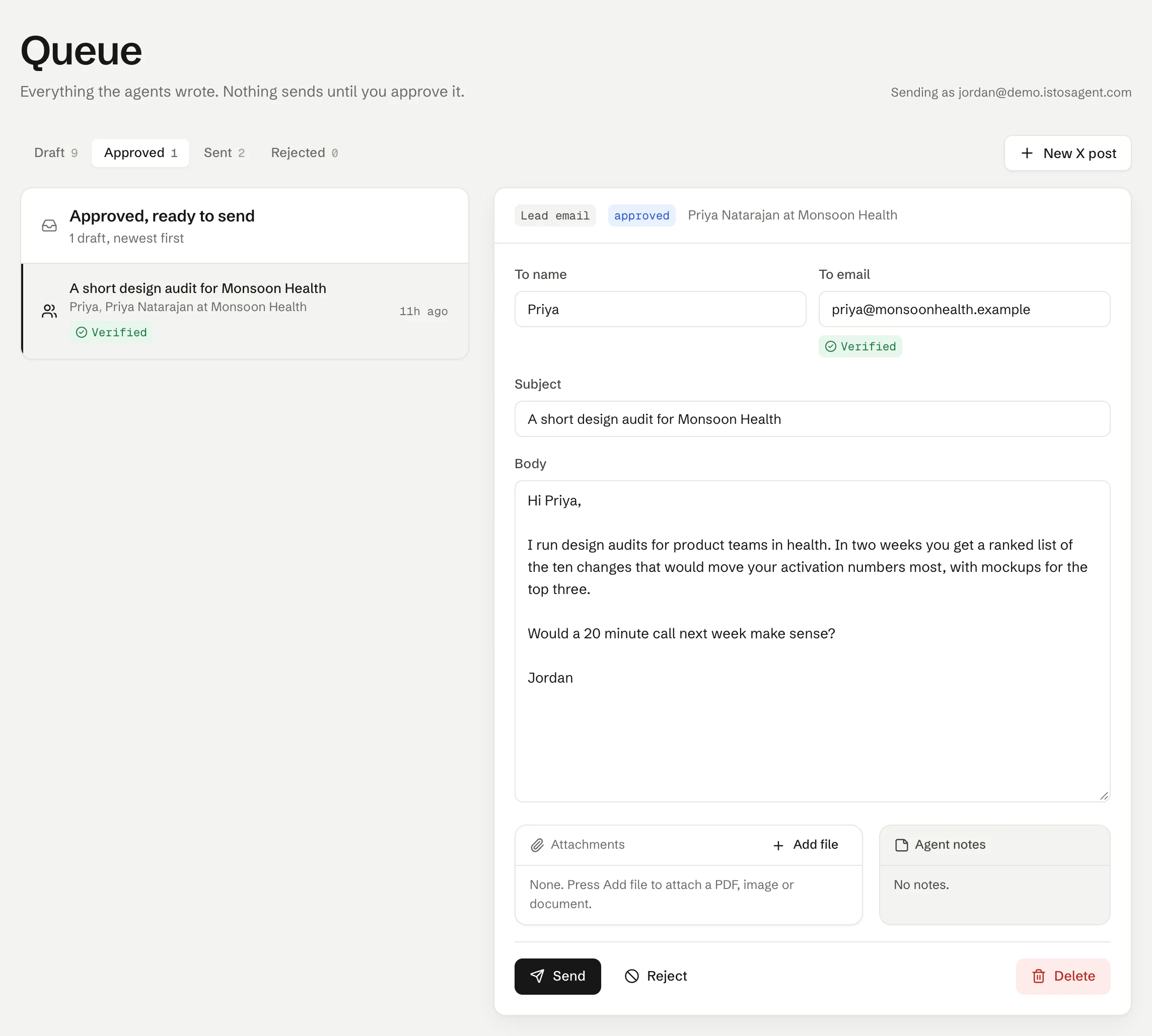
Approved, ready to send. On demo data.
When Istos holds a draft back
Some checks run again at the last moment, and they win over an approval:
- Blocked: do not contact. The address or its domain is on your do-not-contact list, or the person opted out. The draft can't be approved.
- Not found. Your email finders found no deliverable address for this person, so it won't send. Add an address you know is right, then check it.
- Catch-all. The company's server accepts every address, so this one can't be confirmed. Istos asks you to confirm before it sends, with Send anyway or Cancel.
- A flagged role. If Istos flagged a role as a likely fake after its application was drafted, the email won't send, even if you approved it.
Drafts you send yourself
Messages meant for LinkedIn, and referral asks or hiring manager notes without an email address, are copy-and-send. Istos never posts or sends on LinkedIn or X for you. They say so at the top: You send this one.
Edit and approve
Change the message as you like and press Approve. Under the message, a count tells you whether it fits a LinkedIn connection note, which allows 300 characters, or needs to go as a message.
Copy and send it yourself
Press Copy message, paste it into LinkedIn and send it there.
Mark as sent
Back in Istos, press Mark as sent. For referral asks and hiring manager notes, approving already set a reminder to follow up five working days later; it shows on the job's warm path and the bell when it's due.
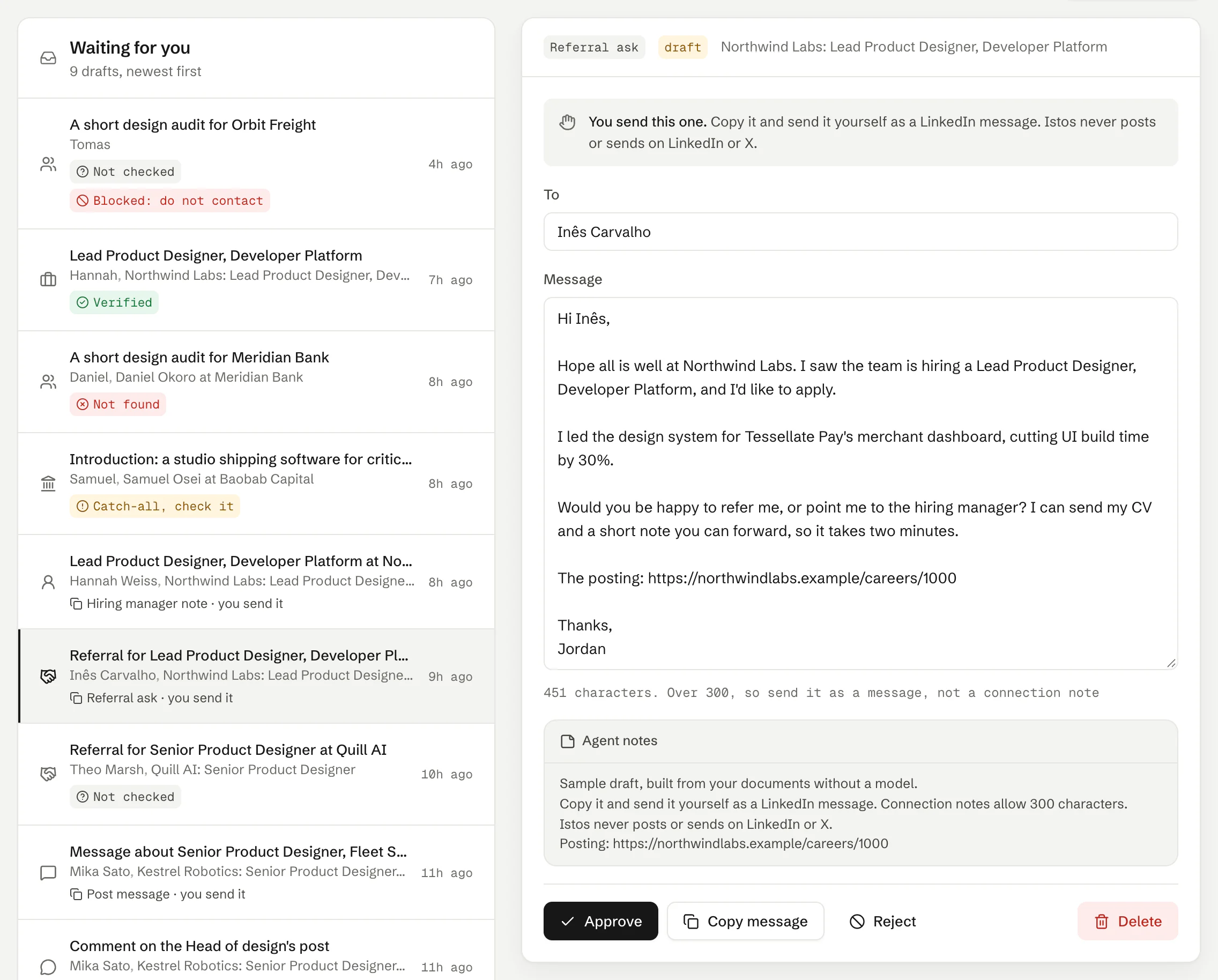
A copy-and-send draft: you send it, then mark it sent. On demo data.
Replies and follow-ups
On the Sent tab, Check replies reads your newest inbox threads for answers to what Istos sent and marks those leads and investors as replied. A clear "remove me" adds the person to your do-not-contact list and rejects anything still waiting for them.
Istos doesn't send follow-ups on its own either. Referral asks and hiring manager notes get a reminder when a follow-up is due. On Customers, a follow-up email to an existing customer is drafted on request and lands here like any other draft.
If something goes wrong
- Approve is greyed out. The draft is blocked by your do-not-contact list. The red note says why.
- Send is greyed out. You have unsaved changes (press Save changes), or the address is Not found.
- "Gmail is not connected" or "No email is connected." Connect Gmail or add your own mailbox on Connections, then press Send again.
- "Your own mailbox is not connected", "Instantly is not connected" or "Instantly sending is part of the Studio plan." The draft was written for a route your account can't use right now. It stays approved. Connect that route on Connections, or change Send lead emails through in Settings and draft the email again.
- "Draft has no recipient email." Add the address in To email, save, then send.
- A draft is marked Sample. It was built from your documents without a model. Edit it into your own words before you approve.
Last in the series: Mission control, where you can watch the agents do all this.
Let the agents do the searching
Istos is in private beta. Join early access, or try the free preview on your resume, your website or your raise first. Nothing sends until you approve it.