How to connect Gmail and send from your own address
Approved emails go out from your own address, so replies come back to you and your name is on every one. How to connect Gmail, or your own mailbox over SMTP if you use Outlook or another provider, and how replies are read.
When you approve an email in Istos, it goes out from your own address. Not from an Istos address, not from a shared sending domain: yours. The person you're writing to sees your name, and when they reply, the reply lands in your own inbox like any other email.
For that to work, Istos needs your permission to send from your mailbox. For most people that mailbox is Gmail (opens in a new tab), and connecting it takes about a minute. If you use Outlook or another provider, you can add your mailbox over SMTP instead; it's further down.
Connect Gmail
Open Connections, then Email
Open Connections from the sidebar. Email is the first section. It has three rows: your own mailbox, Gmail and Instantly. The Gmail row says what it does: it sends the emails you approve from your own Gmail, and reads the replies so Istos can follow up.
Press Connect Gmail
Press Connect Gmail. Google opens its own sign-in page. Choose the account you want to send from.
Allow sending and reading replies
Google lists what Istos is asking for: to send the emails you approve, and to read your mail so it can find the replies to them. Allow both and Google sends you back to Connections.
Check the address
The Gmail row now reads Connected, with the address it will send from next to it. That's the one to check: if it's the wrong account, press Disconnect and connect again with the right one.
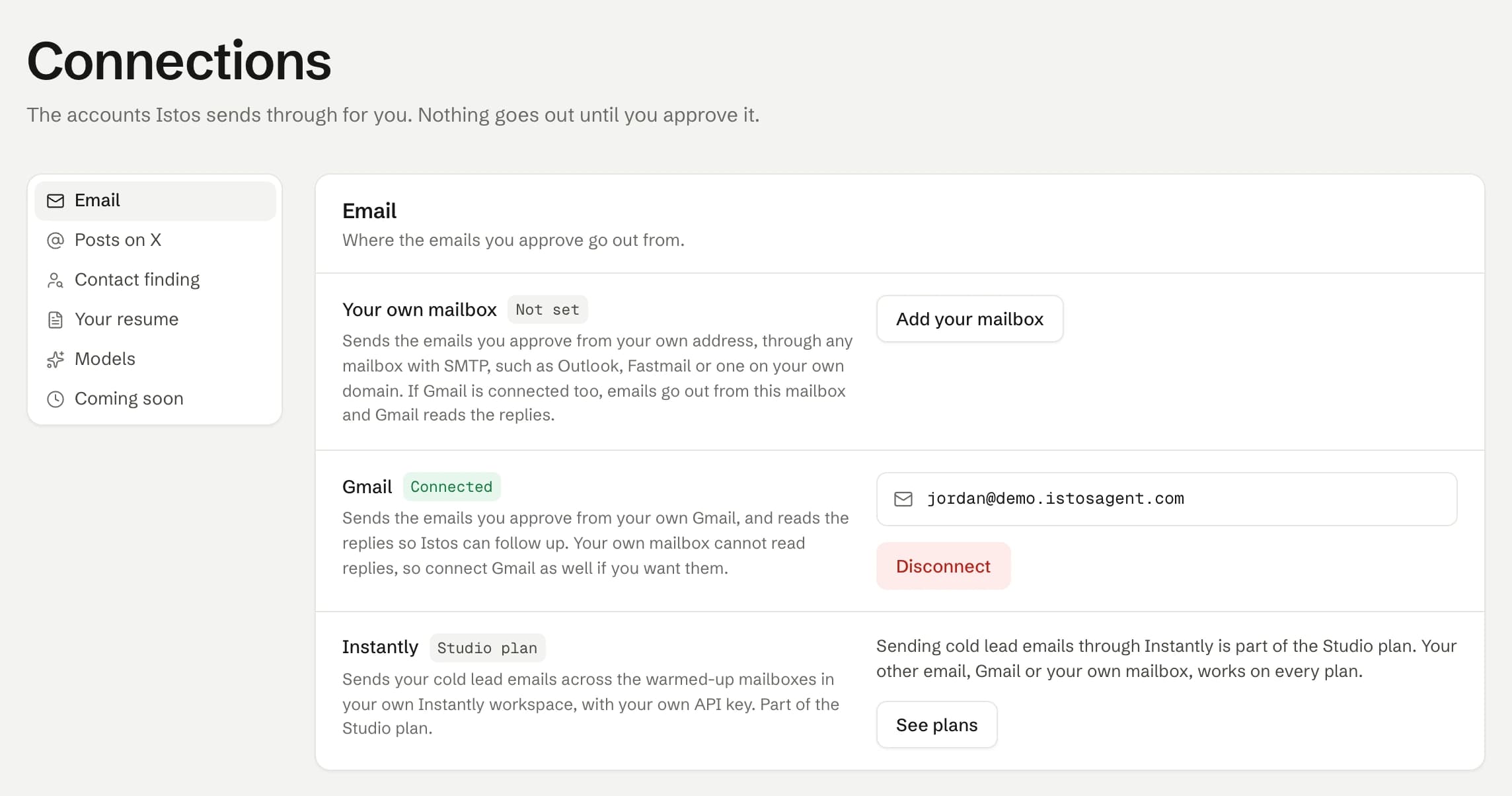
Connections, then Email. On demo data.
What Istos does with your mailbox
Two things, and only two.
It sends what you approve. Nothing goes out until you approve the draft in the queue and press Send. Each email is sent as you, with your name. A job email carries your resume. Every email carries an unsubscribe header, and a first email to a lead also ends with a short opt-out line, which you can change or turn off under Settings.
It reads replies when you ask. On the queue's Sent tab, Check replies looks through your newest inbox threads for answers to emails Istos sent, and marks that lead or investor as replied. If someone writes back with a clear "remove me", Istos adds them to your do-not-contact list and rejects anything still waiting for them, so no follow-up ever goes out. A "not interested right now" is only flagged for you.
It never sends anything you haven't approved, and it only looks at your inbox to find replies to the emails it sent for you.
See it in the queue
Once Gmail or your mailbox is connected, the top of the Queue says Sending as with your address. That's the quickest way to check, before you approve anything, which mailbox your emails will come from.
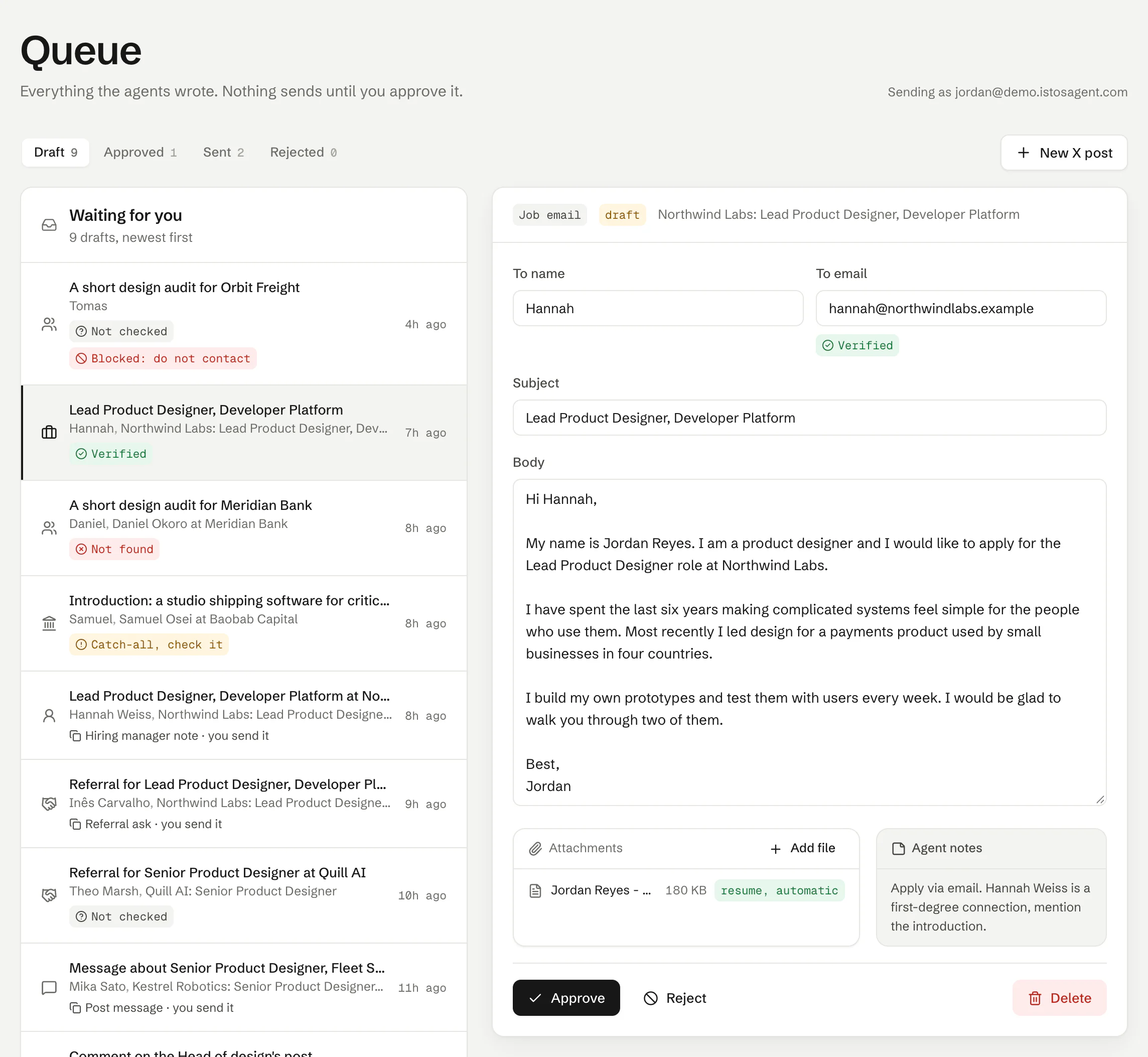
The queue says which address you're sending as. On demo data.
Send from Outlook or another mailbox
On every plan, you can send from any mailbox that offers SMTP, such as Outlook, Fastmail or a mailbox on your own domain. It sits in the row above Gmail.
Press Add your mailbox
In Connections, Email, find Your own mailbox and press Add your mailbox. The form opens only when you ask for it.
Enter the server, port and security
Your provider's help page lists its outgoing mail (SMTP) server. Type the server name, then choose port 465 with SSL/TLS or port 587 with STARTTLS. Istos only accepts those two, and only a public mail server.
Enter the address and password
Type the full email address of the mailbox and its password. If your provider offers app passwords, make one for Istos instead of using your main password.
Press Save and test
Istos logs in once to check the details and sends nothing. If the login works, the row reads Connected with your address. If it doesn't, nothing is saved and you'll see why, in plain words, so you can fix the details and try again.
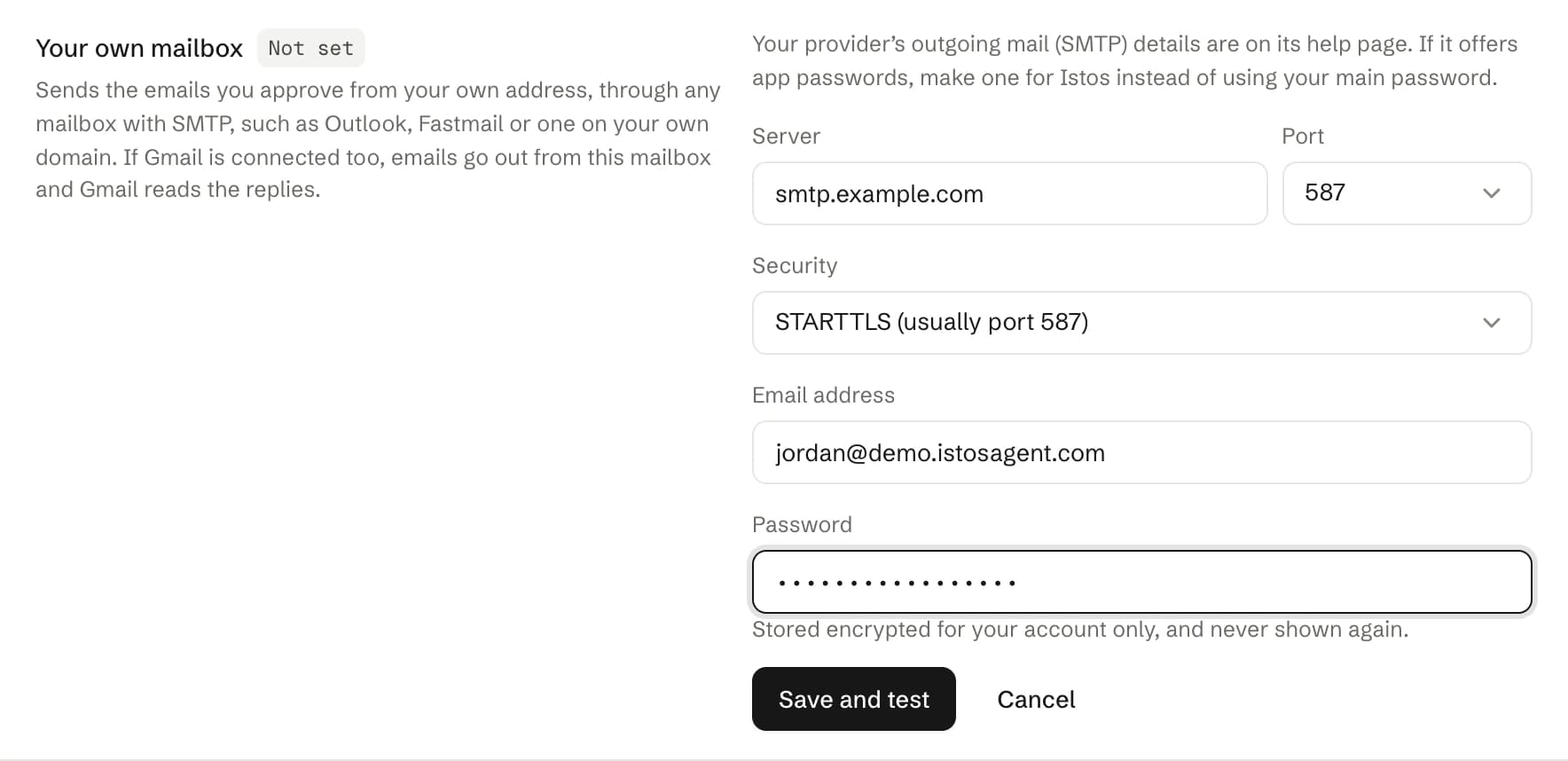
Connections, then Email, then Your own mailbox. On demo data.
Your password is stored encrypted for your account alone and is never shown again, not even to you. Change mailbox opens the form again with the server and address filled in; leave the password empty to keep the saved one. Test login checks it whenever you like, and Remove deletes it.
Two things to know. If Gmail is connected as well, emails go out from your own mailbox and Gmail is used to read replies. And a mailbox added this way can send but can't read replies, so connect Gmail too if you want Check replies to work. Some providers and company admins switch off password sign-in for SMTP; if the login is refused, ask for an app password or for SMTP to be allowed on that mailbox.
Disconnect or switch accounts
Press Disconnect on Connections and confirm. Your drafts stay exactly as they are; nothing sends until you connect again. To switch to a different Gmail account, disconnect, then connect with the other one. For your own mailbox, press Remove, or Change mailbox to point it at another one.
You can also remove Istos's access from Google's side at any time. Google explains how in Manage links between your Google Account and apps from other developers (opens in a new tab). If you do, connect again on Connections before you send.
If something goes wrong
- "Gmail isn't available yet." Istos is still setting up its Google connection for your install. Nothing for you to do; try again soon.
- Google says the app is blocked. This usually means your Google Workspace admin restricts third-party apps. Ask them to allow Istos, or use a personal Gmail account.
- The row says Needs attention. Google stopped accepting Istos's access, for example after access was removed on Google's side. Press Reconnect Gmail.
- A send fails with "Gmail is not connected" or "No email is connected." Connect Gmail or add your own mailbox on Connections, then press Send again on the approved draft.
- The mailbox refused the login. Check the address and password, and that SMTP is allowed for that mailbox. Many providers need an app password. Nothing is saved until the login works.
- "Could not connect to the mail server." Check the server name, the port and the security setting. SSL/TLS goes with port 465 and STARTTLS with port 587.
- Your own mailbox says Needs attention. A send or a test was refused. Press Test login, or Change mailbox if the password changed.
- Check replies finds nothing. It looks at your newest inbox threads, and only for replies to emails Istos sent. Replies to emails you wrote outside Istos aren't counted.
Next: telling Istos exactly who you're after, so every draft starts in the right place.
Let the agents do the searching
Istos is in private beta. Join early access, or try the free preview on your resume, your website or your raise first. Nothing sends until you approve it.