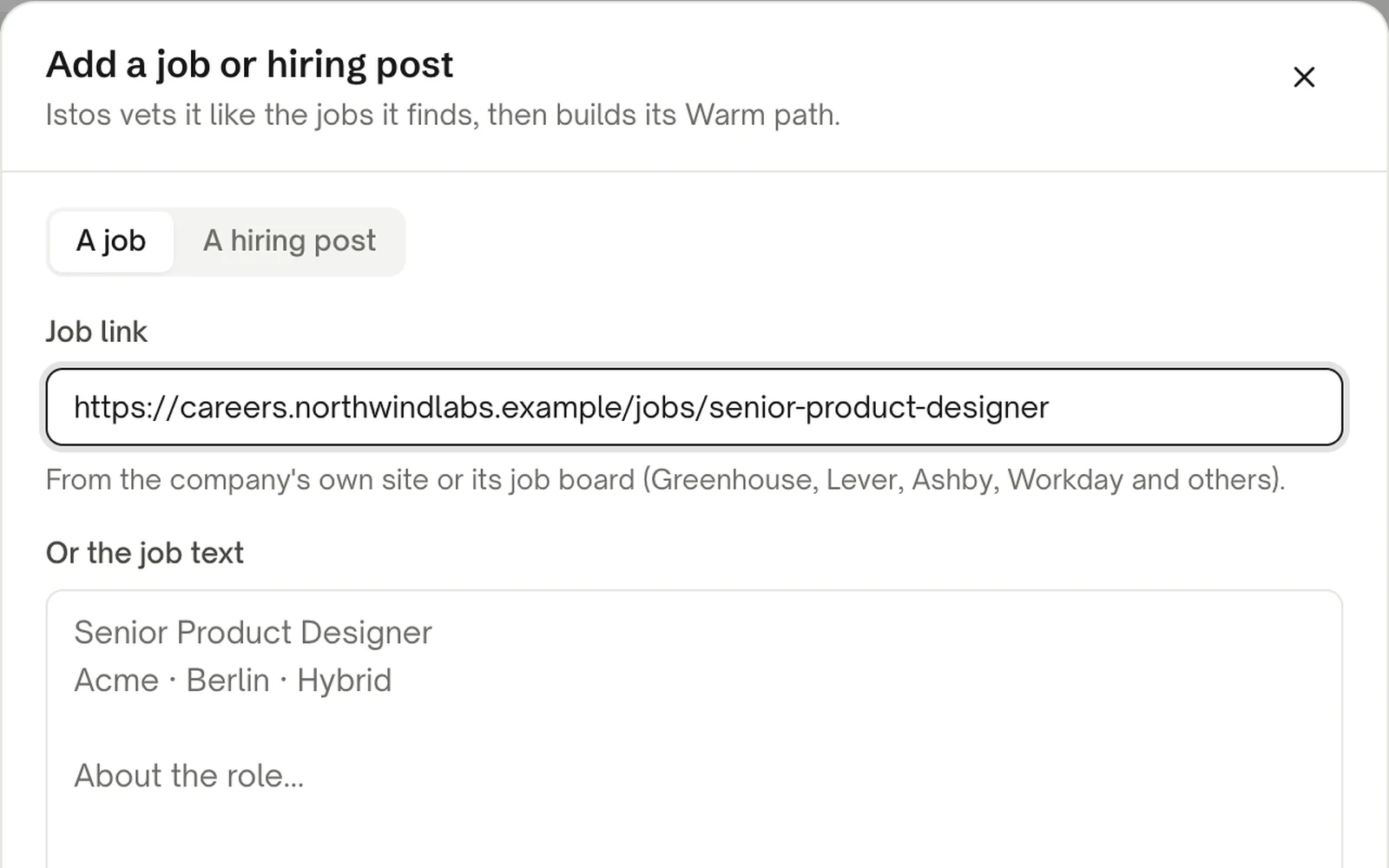
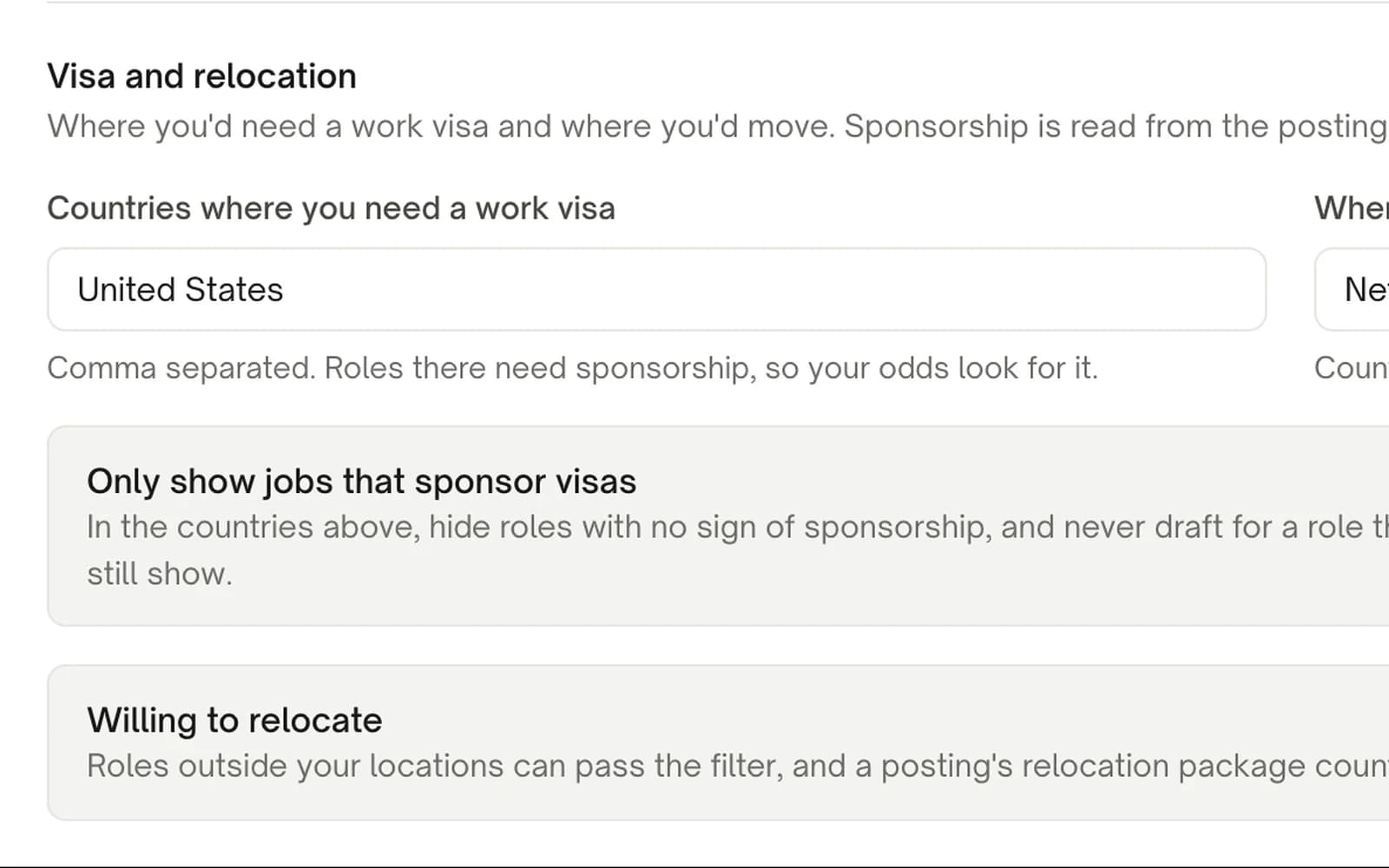
How to find the hiring manager for a job
The posting usually tells you who the role reports to, and the company's own site usually tells you who that is. A four-step way to find the right person, check their address and write one short note, by hand or with Istos.
A short note to the person a role reports to is one of the few things that reliably lifts an application out of the pile. The hard part isn't writing it. It's working out who that person is, without guessing, and finding an address that won't bounce.
Most of the time, the answer is hiding in two places you've already got: the job posting and the company's own website. This post walks through how to read both, what to do when they don't say, and how Istos does the first two steps for you on every role.
Step 1: read the posting for who it reports to
Postings are written by the team that's hiring, and they often say who you'd work for. Look for lines like these:
- "You'll report to our Head of Design."
- "Reporting to the VP of Engineering."
- "You'll join the growth team, led by our Director of Marketing."
- "Working closely with the CTO and founders."
That gives you a role, not a name. A role is enough to go on. Note the exact title, because that's what you'll look for next.
If the posting says nothing, use the role's function and seniority. A senior product designer at a 40-person company most likely reports to a head of design or the head of product. At a 10-person company, it may be a founder.
Step 2: find who holds that role, on the company's own site
Go to the company's website and look for pages called Team, About, People, Leadership or Company. Many small and mid-sized companies list their team there, with titles. A blog with author pages helps too: a head of design often writes about design.
The company's own site is the best source because it's the company saying who works there. It's usually more current than a profile somewhere else, and it's not a guess.
Step 3: if the site doesn't say, search for it yourself
When the site doesn't list the team, run a search for the title and the company, such as "Head of Design Northwind Labs", on LinkedIn or Google. Read what comes back carefully. Titles change, people leave, and two people at different companies can share a name.
Don't pick a name from a list because it seems likely. Writing to the wrong person reads as careless, and it's worse than writing to nobody.
Step 4: find an address that won't bounce
Once you have a name, you need a work address. Use an email finder that looks the address up and checks it, such as Hunter, Prospeo or LeadMagic. Don't build one from a pattern like first.last@company.com and hope: a wrong guess bounces, and enough bounces hurt your sending reputation.
If a finder marks an address as catch-all, the company's server accepts everything, so the address can't be confirmed either way. Send to it only if you're fairly sure.
Then write one short note
Keep it short and specific: who you are in one line, why this role, one piece of proof from your work that matches what the posting asks for, and a small ask. Send it around the same time as your application, so your name means something when they see it.
How Istos does steps 1 and 2 for you
On every role in Istos, open the job and look at The hiring side in the warm path.
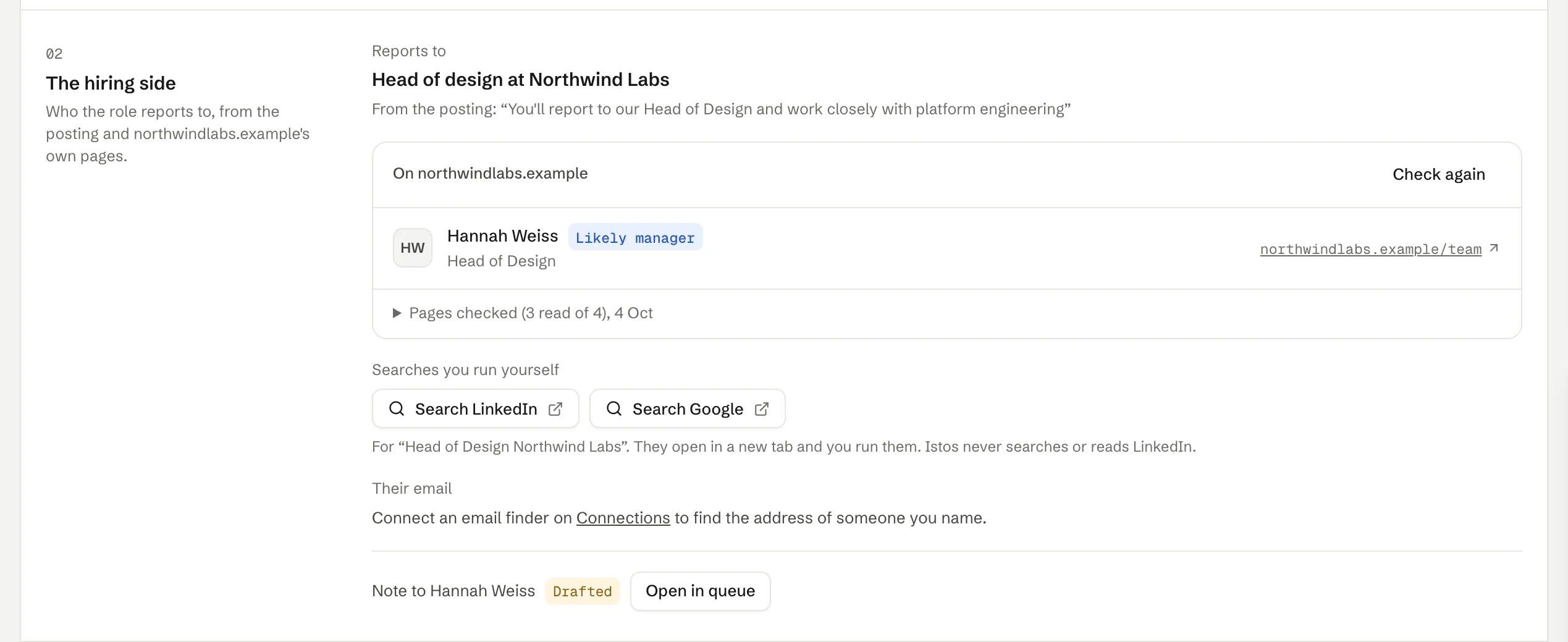
- Reports to is read from the posting in plain code, using the kinds of phrases in step 1, and the posting's own sentence is quoted under it so you can see where it came from.
- Under it, Istos reads the company's own site: the team, about, leadership and people pages it can find, and blog author pages, up to five pages, and only where the site's robots.txt allows it. It lists the people whose titles match, marks the most likely one Likely manager, and links each to the page it was found on. Pages checked shows which pages it read. Check again reads them again.
- Searches you run yourself opens a LinkedIn or Google search for that title at that company, in a new tab. You run it. Istos never searches or reads LinkedIn. Why Istos never logs in to LinkedIn for you explains why.
Istos needs the company's website to read its pages. If it doesn't have one, it says so, and you can add the website to the company on your watchlist.
Steps 3 and 4: you choose, your finder checks
When you know who it is, type their name under Their email and press Find email. Istos looks the address up with your own email finder accounts, in the order you set, and stops at the first verified one. It never guesses an address from a pattern. If you haven't connected a finder yet, the panel says so and links to Connections. How to find verified email addresses with your own keys covers setting one up.
Draft hiring manager note then writes the note and puts it in your queue. When no writing model is connected, it's a sample built from your own documents in plain code, marked Sample, so read it and put it in your own words. Like everything in Istos, it doesn't send until you approve it.
When you approve it, Istos sets a reminder to follow up five working days later. Nothing goes out on its own when it's due.
If something goes wrong
- No "Reports to" line. The posting doesn't say, in words Istos recognises. Use the role's function and seniority, as in step 1.
- Nobody found on the team pages. The site has no team page, keeps it off limits in robots.txt, or lists names without titles. Run the searches yourself.
- The wrong person is marked Likely manager. It's matched on title. Trust what you find over the mark, and type the right name under Their email.
- The address comes back catch-all. Istos asks you to confirm before it sends to a catch-all address. Do so only if you're fairly sure.
The hiring side is one of four parts of a job's warm path. How to use the warm path on a job covers the rest, including asking someone you know for a referral first.
Let the agents do the searching
Istos is in private beta. Join early access, or try the free preview on your resume, your website or your raise first. Nothing sends until you approve it.