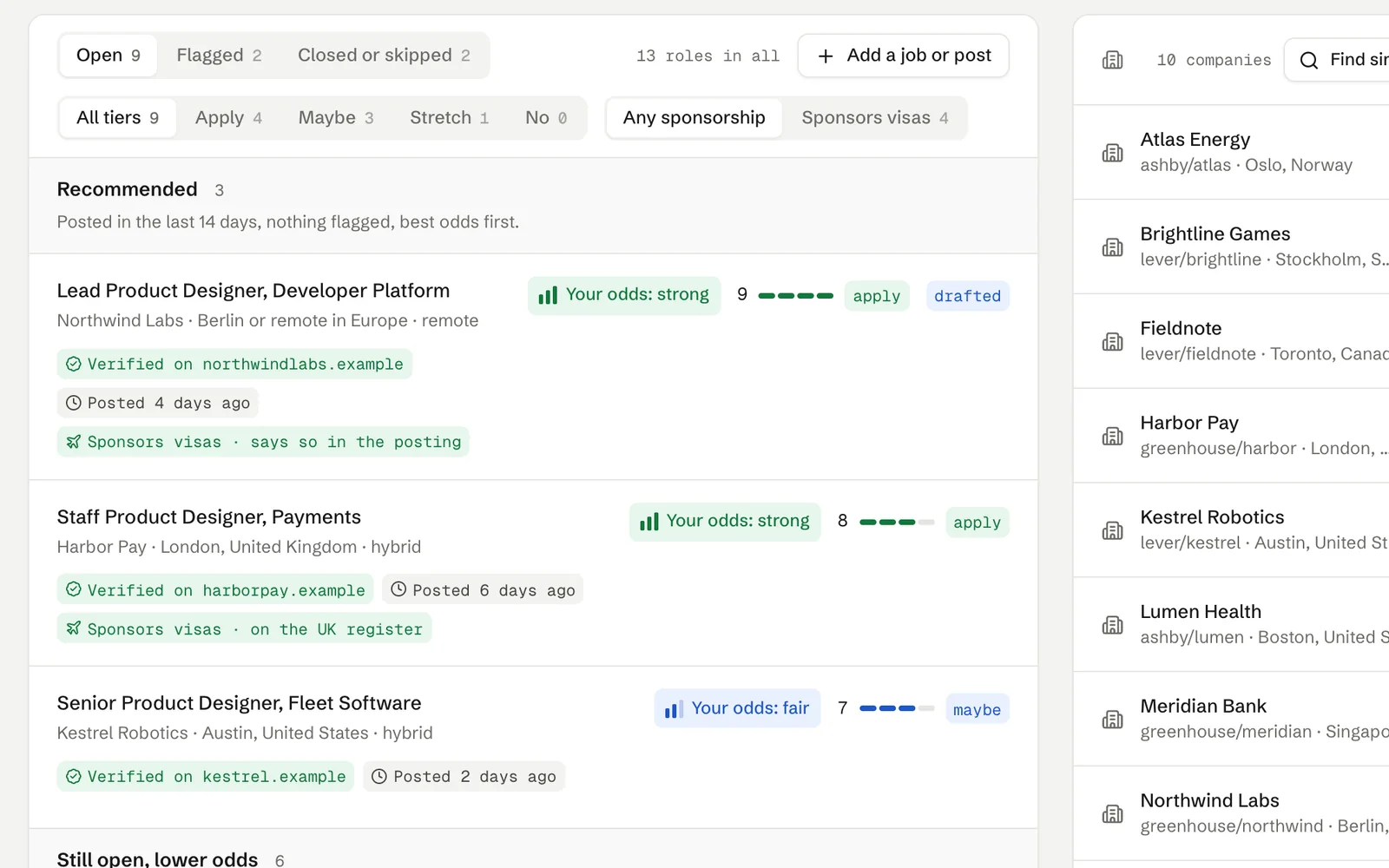
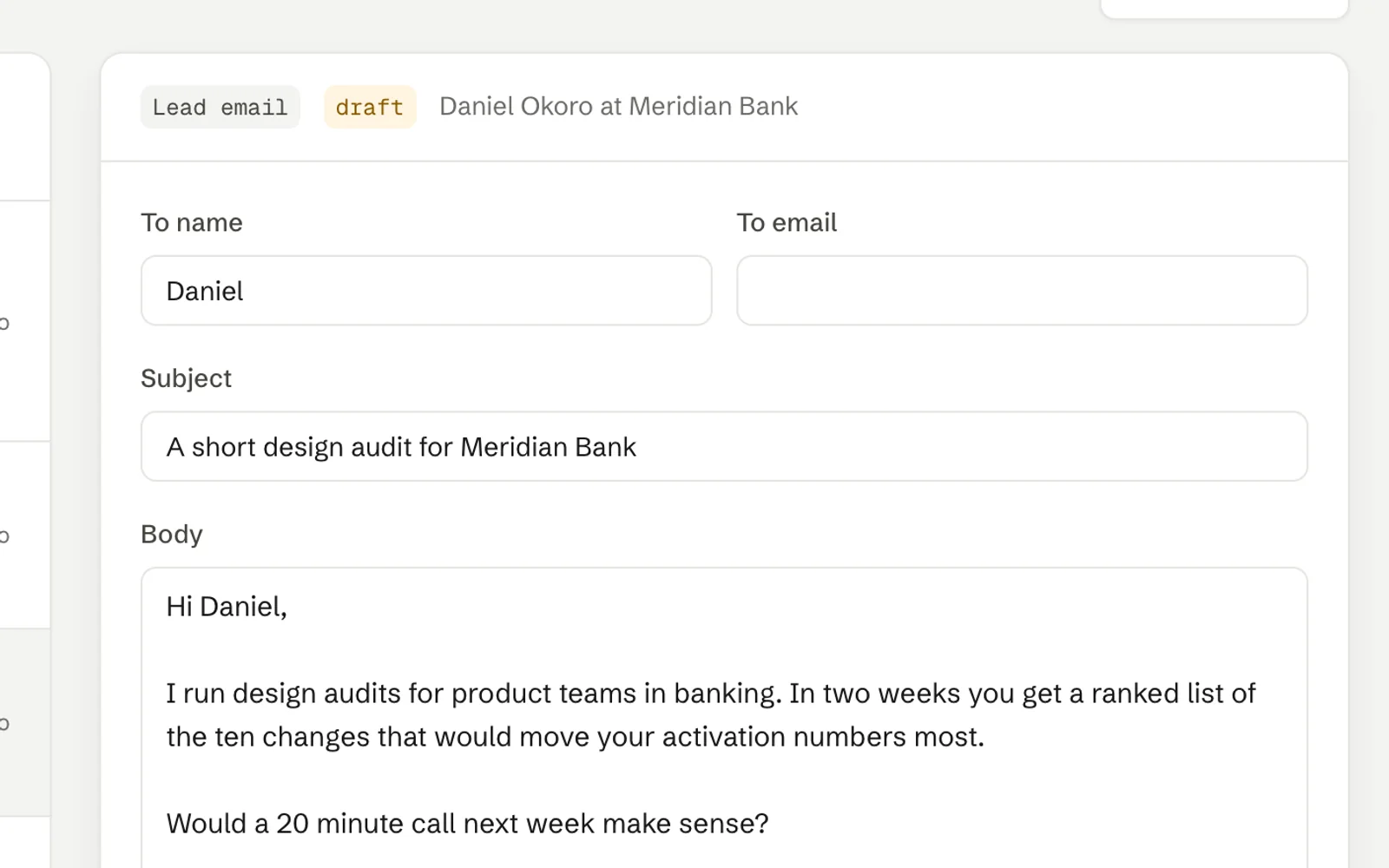
How to find verified email addresses with your own keys
Connect Hunter, Prospeo or LeadMagic with your own account, set the order and a daily limit, and let Istos check every address before anything is sent. Plus the do-not-contact list that sits over all of it.
Istos doesn't sell you a contact database, and it never guesses an email address from a pattern. When it needs the work address of someone you want to write to, it asks email finders you connect with your own account, and it only uses an address one of them actually found.
That keeps two things true. Every address on a draft came from a real check, not from firstname@company. And the cost is yours to see and control: credits come from your provider, never from Istos.
What each one costs
From each provider's own pages, checked on 5 October 2026:
- Hunter counts one credit for each email its finder finds, and nothing if it can't find one. Verifying an address costs half a credit, and nothing if it fails to verify. Its free plan includes 50 credits a month. (Hunter pricing (opens in a new tab)) Usage in Istos logs a check as half a credit, as Hunter's standard plans count it; its Data Platform plans count one verification credit from a separate pool, so Hunter's own dashboard is the final word.
- Prospeo charges one credit per email found, nothing when no result is found, and nothing for enriching the same record again within 90 days. (Prospeo API docs (opens in a new tab))
- LeadMagic charges one credit per valid email found and 0.25 credits per validation, and failed lookups are free. Its page says new accounts choose a paid plan at signup. (LeadMagic pricing (opens in a new tab))
Prices and plans change, so check their pages before you buy credits.
Connect your finders
Open Connections, then Contact finding
Open Connections and choose Contact finding. Each provider has its own row with a status: Not set, Added, or Needs attention if its key stopped working.
Add your key
Press Add your Hunter key (or Prospeo, or LeadMagic). The hint under the field says where to find the key on that provider's dashboard. Paste it and press Save key. Keys are stored encrypted for your account only, and never shown again.
Test it
Press Test key. Istos makes one small call to the provider and tells you whether the key works.
Set the order
With more than one finder, use the arrows, or drag a row, to set the order. Istos tries them from the top and stops at the first verified address. If one only finds a catch-all address, it keeps that while it asks the next. The switch on each row turns a finder off without removing its key.
Set a daily limit
Lookups a day caps how many fresh lookups Istos runs for you in a day, 50 unless you change it, so a big list can't spend more than you meant to. Looking up the same person again within 30 days is free, because Istos remembers the answer.
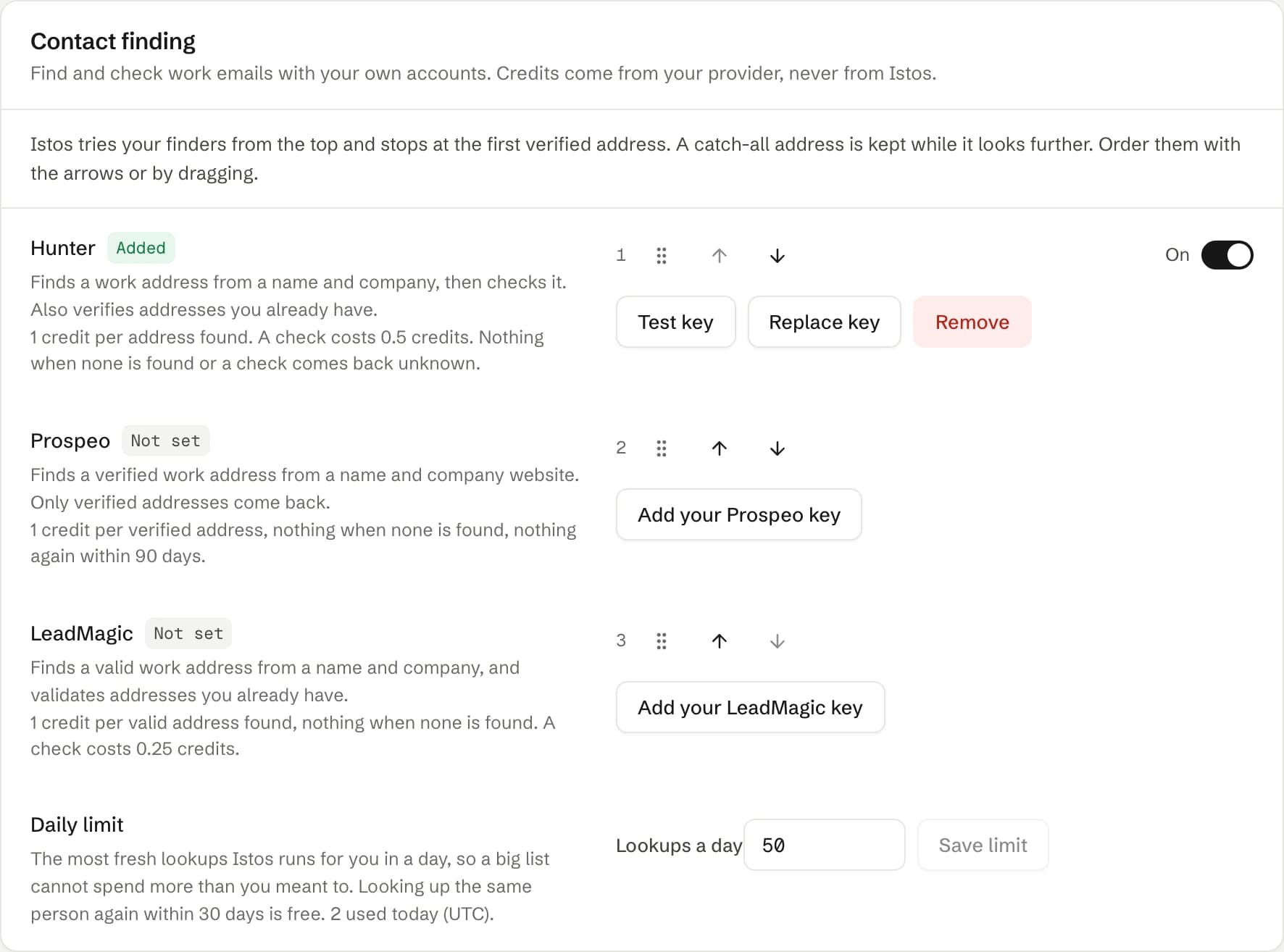
Connections, then Contact finding. On demo data.
Find an address
Once a finder is connected, there are three places to use it:
- Leads and Investors. Each row without an address has a Find email key. The Find emails panel at the top looks up everyone without one, in the background, within your daily limit.
- The warm path on a job. Under The hiring side, type the name of someone you found yourself and press Find email.
- The queue. On any email draft, Check address asks your verifier whether the address is deliverable.
Each address then carries a badge, words first and colour second: Verified, Catch-all, check it (the company's server accepts every address, so it can't be confirmed), Not found, or Not checked for an address you typed yourself.
Those badges aren't just labels. Istos won't send to an address the finders said is Not found; the draft says so, and asks you to add an address you know is right. A Catch-all address needs one more click before it sends: Istos asks you to confirm, because it may bounce.
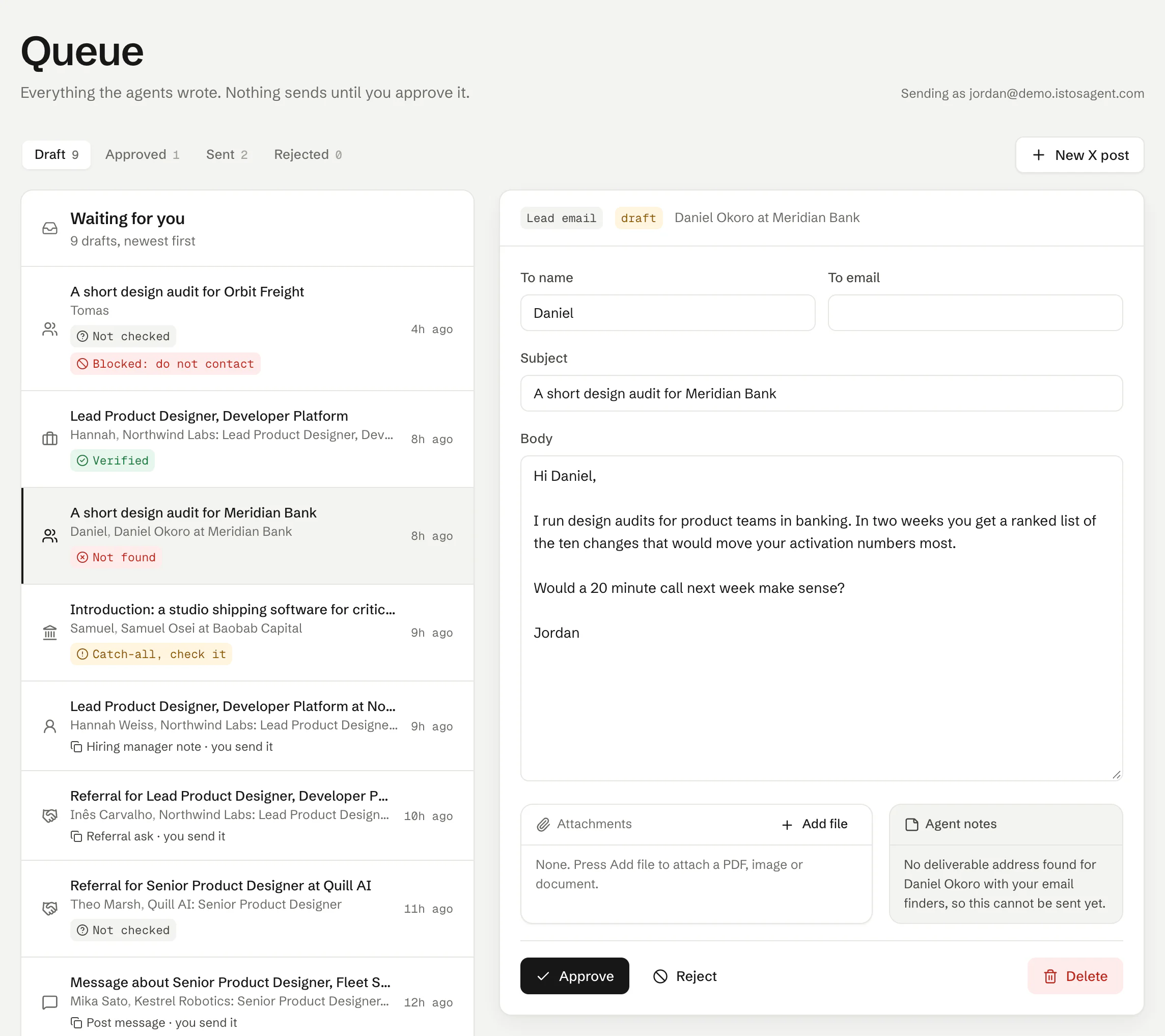
In the queue, every address carries its check. On demo data.
The do-not-contact list
Over all of this sits one list: people and domains Istos never writes to. It's under Settings, then Do not contact.
Add emails or domains
Type or paste them one per line. A domain covers everyone at it, and its subdomains. Commas, tabs and spreadsheet columns work too.
Say why
Pick a reason and, if you like, add a note only you see.
Or import a file
Import a file takes a CSV or text file, handy if you're moving a list from another tool. Export gives it back to you.
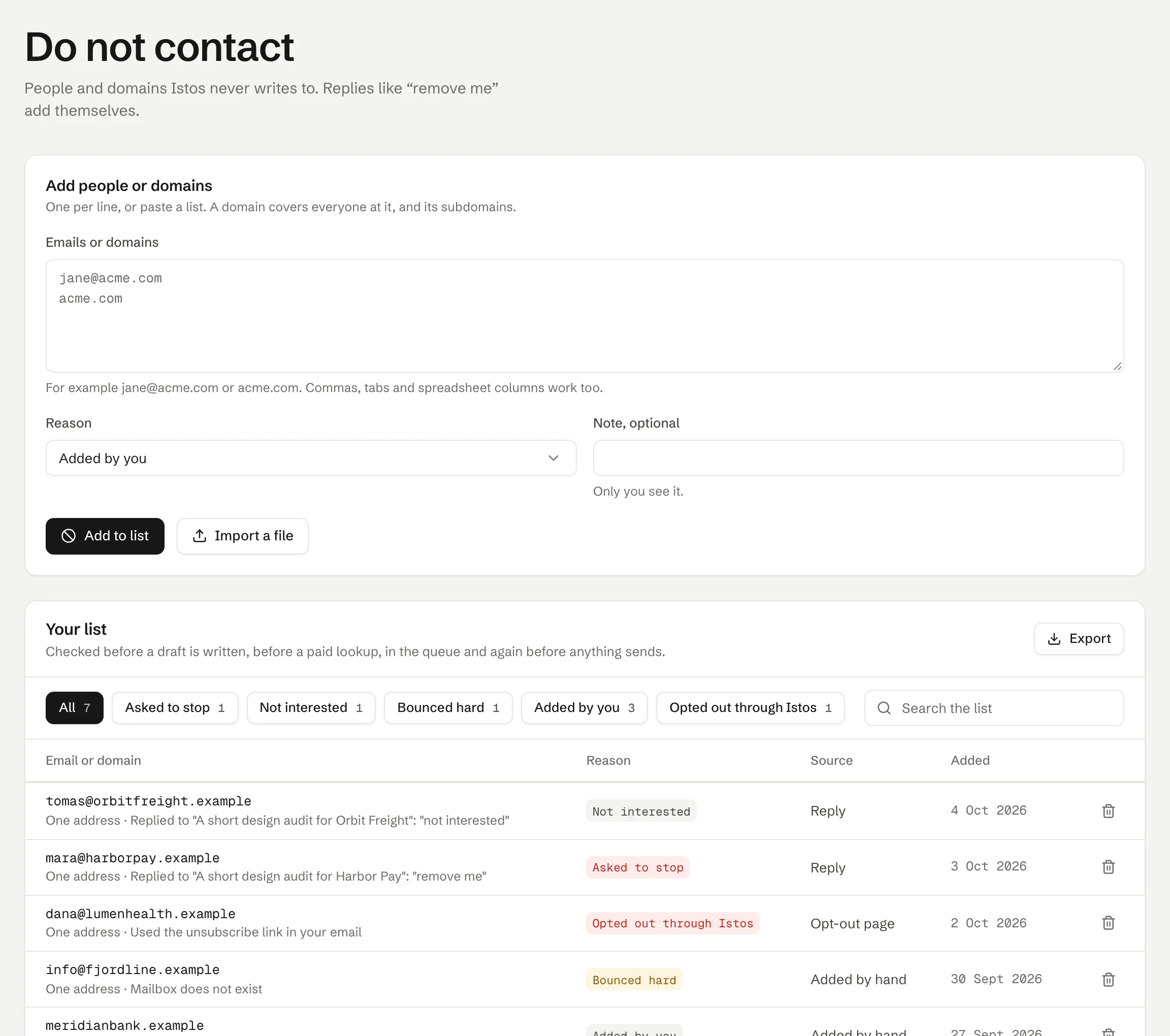
Settings, then Do not contact. On demo data.
You won't need to add most entries by hand. When someone replies "remove me", or uses the unsubscribe link in an email you sent, they add themselves. The list is checked before a draft is written, before a paid lookup, in the queue, and once more just before anything sends. Istos never runs a lookup at a domain on the list, or checks an address that's on it, so the list never costs you a credit.
If something goes wrong
- The row says Needs attention. The provider rejected the key, often because it was revoked or the plan ran out of credits. Press Test key to see the provider's answer, then Replace key if you need to.
- Lookups stopped part way. You've reached your daily limit. It resets at midnight UTC, or you can raise it under Lookups a day.
- Everything comes back Not found. The finders need a full name and the company's website. Check the company on the lead has a domain, then try again.
- A draft can't be approved and says Blocked: do not contact. That address or its domain is on your list. Remove it from the list only if you're sure they're happy to hear from you.
Next: using what you know about a company before you apply to it.
Let the agents do the searching
Istos is in private beta. Join early access, or try the free preview on your resume, your website or your raise first. Nothing sends until you approve it.