How to import your customers and track every deal in one place
Bring your clients in from a spreadsheet, a CSV or a Google Sheet, check the columns before anything is saved, and run a simple pipeline from first hello to won. A guide for freelancers, studios and small teams who don't need a full CRM.
A lot of small businesses run their sales from a spreadsheet. A row per client, a column for where things stand, maybe a date for when to chase. It works until it doesn't: the follow-up you meant to send last Tuesday, the proposal that went quiet, the client you won and forgot to thank.
The Customers page in Istos is a deliberately simple pipeline for that stage. It isn't a full CRM and doesn't try to be. It holds your deals, the next step on each, and a log of what happened, next to the leads and outreach that fed them. This post covers bringing your existing list in and keeping it current.
Get your list ready
You don't need to reshape your spreadsheet much. Istos reads the first row as column names and lets you match them, so "Client", "Status" or "Value" are fine. What helps:
- One row per customer. A name is the minimum. Company and email are worth having.
- A stage column, if you have one. Values that match a stage, such as Proposal or Won, are kept. Anything else comes in as Lead, and you can move it later.
- A deal value as a plain number, without currency symbols, and a currency column if you work in more than one.
- A next step and a date, if you track them. They're the most useful fields in the whole page.
If you're starting from scratch, Download a template on the import card gives you a CSV with every column in place.
Import it
Open Customers and press Import. Choose File for a CSV, TSV or Excel (.xlsx) file, or Google Sheets link for a sheet. For a sheet, open Share in Google Sheets and set General access to Anyone with the link first. The tab in the link is the one that's imported.
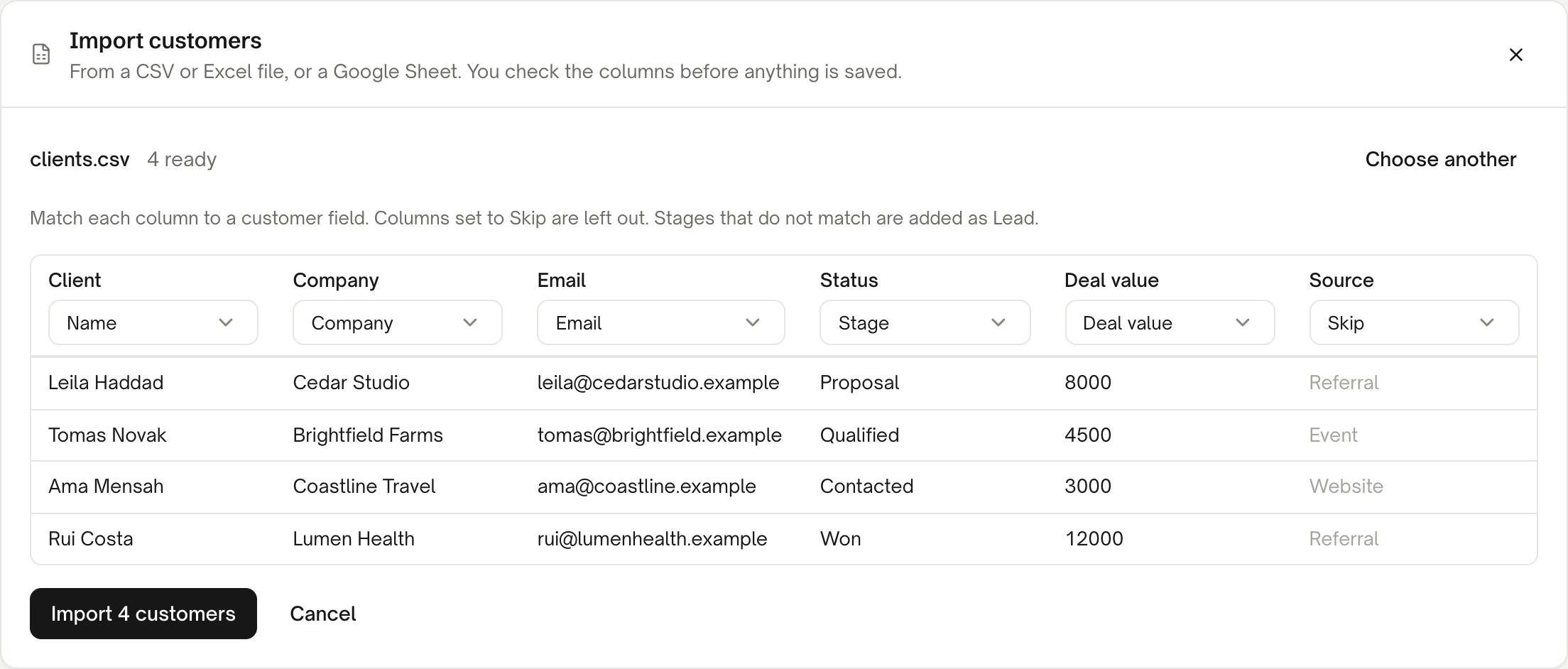
Importing a fictional client list on demo data. Nothing is saved until you press Import.
Check how many are ready
Next to the file's name, Istos says how many rows are ready, and how many will be skipped because they have no name.
Match each column
Each column has a picker. Istos makes a best guess from the column names; change any that are wrong. A column maps to one field, and each field to one column. If your sheet splits first and last names, match the first name column to Name, leave the last name column on Skip, and Istos joins them.
Skip what you don't need
Set any column you don't want to Skip. Skipped columns are greyed out in the preview and left out.
Import
Press Import. The key says how many customers will be added. When it's done, Istos tells you how many were added, and how many were left out because their email was already a customer or the row couldn't be read.
The fields you can import are name, company, email, phone, stage, deal value, currency, next step, next step date and notes.
Work the board
The page opens on Board: one column per stage, each with its count and total value. Drag a card to another stage, or pick one from the card's menu. Table shows the same customers as rows you can sort, which is handier for a long list.
Across the top, four numbers tell you how things stand:
- Open pipeline, the value of every deal that isn't won or lost, and how many there are.
- Won this month, with its value.
- Follow-ups due, deals whose next step date is today or has passed.
- Win rate, won against lost, once you've closed at least one either way.
Each deal keeps its own currency. If you leave a deal's value empty, the card says No value, which is fine for early conversations.
Keep a next step on every deal
The single habit that makes a pipeline useful is a next step with a date on every open deal: "Send the revised quote, 14 Oct". When the date passes, the card shows Overdue in red, and it counts towards Follow-ups due.
Open a customer to see and change everything about them. Use Log activity to note a call, a meeting, an email or a plain note, so the history is in one place when you pick it up again. Stage changes are logged too.
Two more keys sit on each customer:
- Don't contact adds them to your do-not-contact list, so Istos never drafts or sends anything to them. How to handle unsubscribe requests in cold email covers the list.
- Delete removes them.
Where customers come from
You can add customers three ways:
- Add customer, one at a time, with name, company, email, phone, stage, deal value, next step and its date.
- Import, as above.
- From Leads. When a lead turns into a real conversation, the lead's row has a key to convert it into a customer, so the person moves from outreach to your pipeline without retyping.
Then find more like the ones you won
Your won customers are the best description of who to sell to next. On Leads, the Like your customers tab starts from them and finds companies in recent news that look like them and are raising, launching or hiring. How to find companies and investors like the ones you name walks through it, and how to use funding news to find your next customers covers working those stories.
If something goes wrong
- "That file is over 5 MB." Split it into smaller files and import each.
- "Pick the column that holds the name." Match at least one column to Name, Company or Email.
- Too many rows. Import up to 2,000 customers at a time. Split the file and run it twice.
- Fewer added than expected. Rows with an email that's already a customer are skipped, so importing the same file twice doesn't double your list.
- A Google Sheets link won't open. Check that General access is Anyone with the link, and that the link points at the tab you want.
Let the agents do the searching
Istos is in private beta. Join early access, or try the free preview on your resume, your website or your raise first. Nothing sends until you approve it.